The Epicz portal is the main web entry point, designed to help users get started quickly and navigate day-to-day work.
Go to https://portal.epiczlab.com and login:
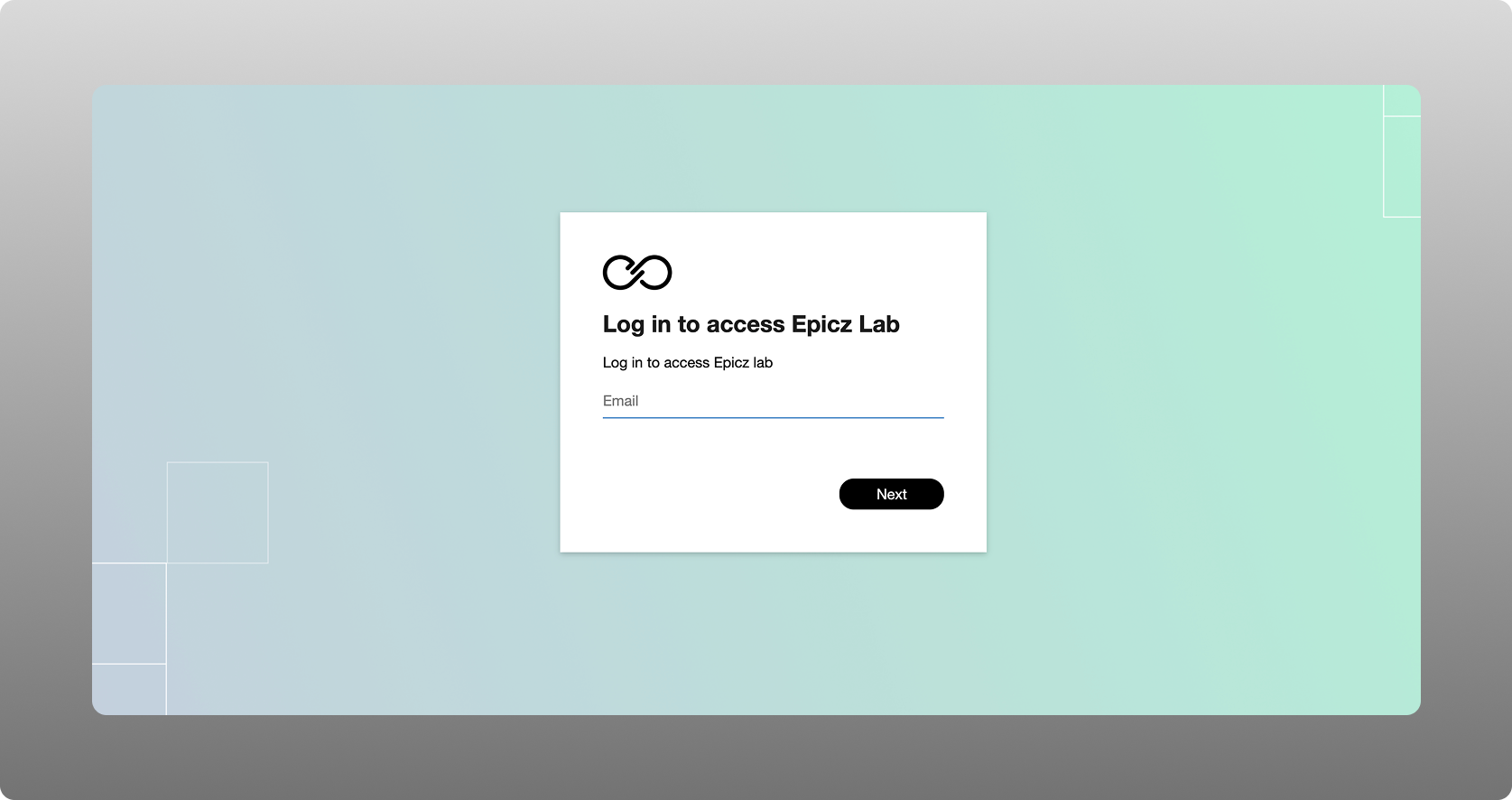
For enterprises that connect directly through SSO / SAML, most often you will ask for access through your internal support desk.
In cases of single sign on you will most likely have your unique customer url to go to in the form of: https://companyName-portal.epiczlab.com.
Purpose
The portal gives access and setup frameworks to all of our solutions, being Operator AI, Factory Live and Custom AI Studio. It provides a clear place to access, manage setup, and get going in Epicz environments. Through the portal, you get a structured way to move between plant**, group, and asset** levels in a consistent interface.
And of course, AI is there to guide you all the way through, ensuring that you reach value as fast as possible.
Setting up your structure to be able to use main Epicz digital & AI solutions
The main administrational part of the portal is to either import or construct your plant / facility / lab structure. This is done through the “Structure” menu item on the left:
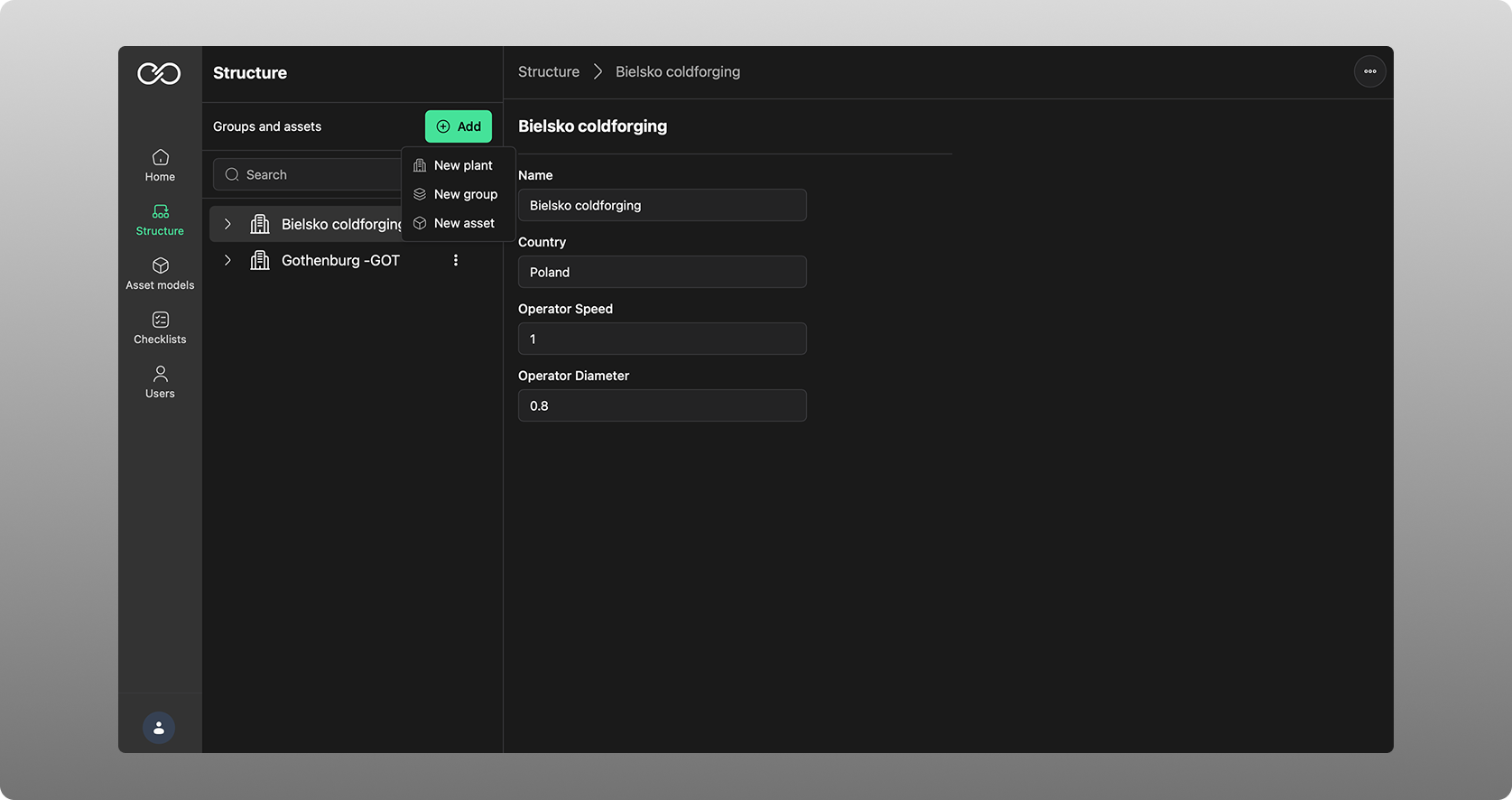
In the structure you can add a “New Plant”, and under a new plant you can add “New Group” and “New Asset”. The structure is built to support any amount of depth necessary to cover the supporting asset organization you have as a customer.
Each plant is given some metadata in terms of Name, Country, Operator Speed (how fast an operator can walk) and Operator Diameter (used for later simulations).
The group level gets another set of metadata:
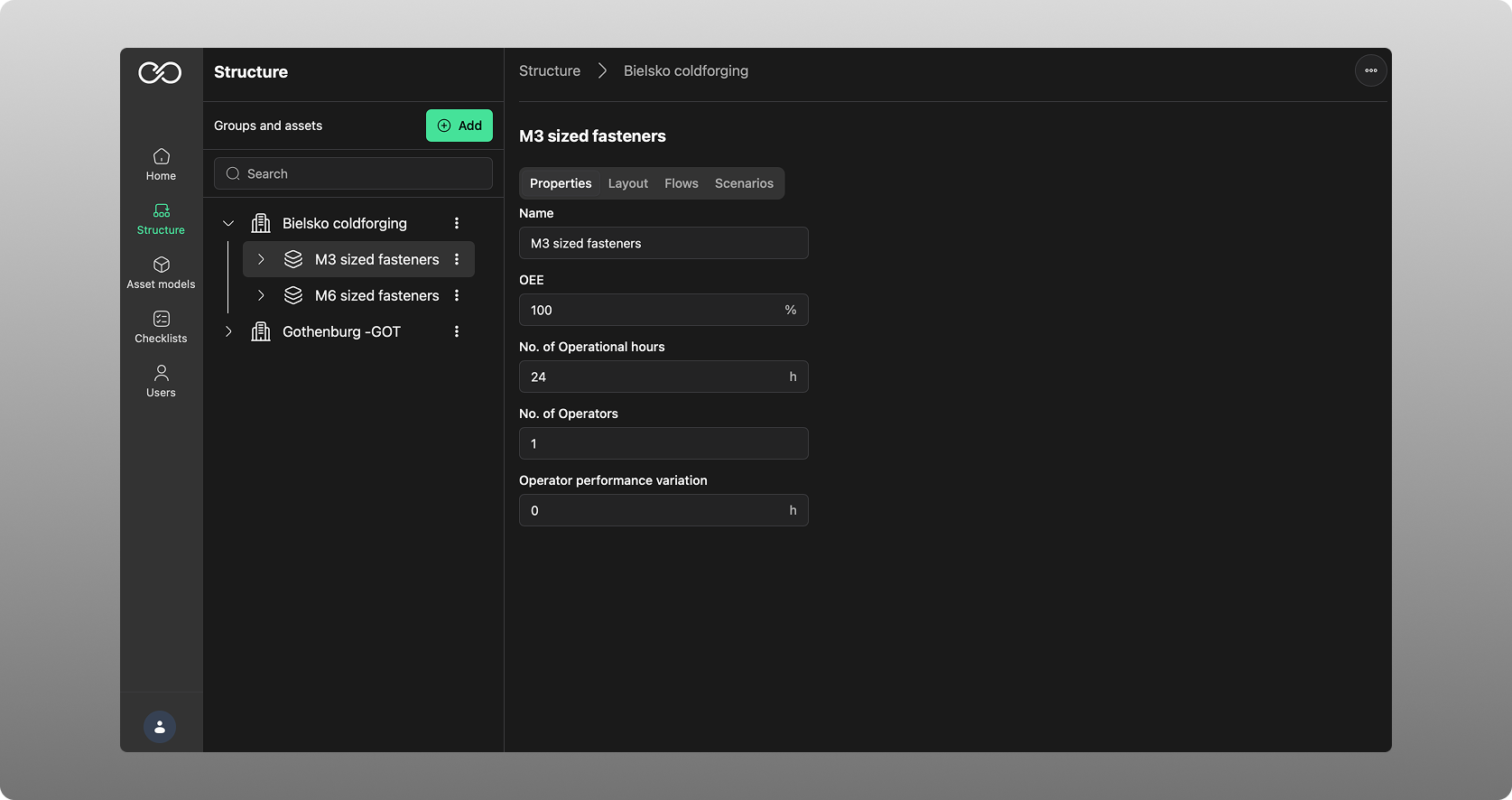
Metadata here is Name, OEE, No of operational hours, No of operators and Operator performance variation. These are not mandatory but will be used later on for scenario purposes and are therefore useful to fill out.
In a group, you can further define:
LAYOUT: a scene to which you draw in assets under a group to form for example a production lineFLOWS: Where you can start to define product, material and other flows and study them from a simulation point of viewSCENARIOS: A place where you calculate outcomes with the support of AI driven algorithms and guidanceAn asset is the lowest type of structure added:
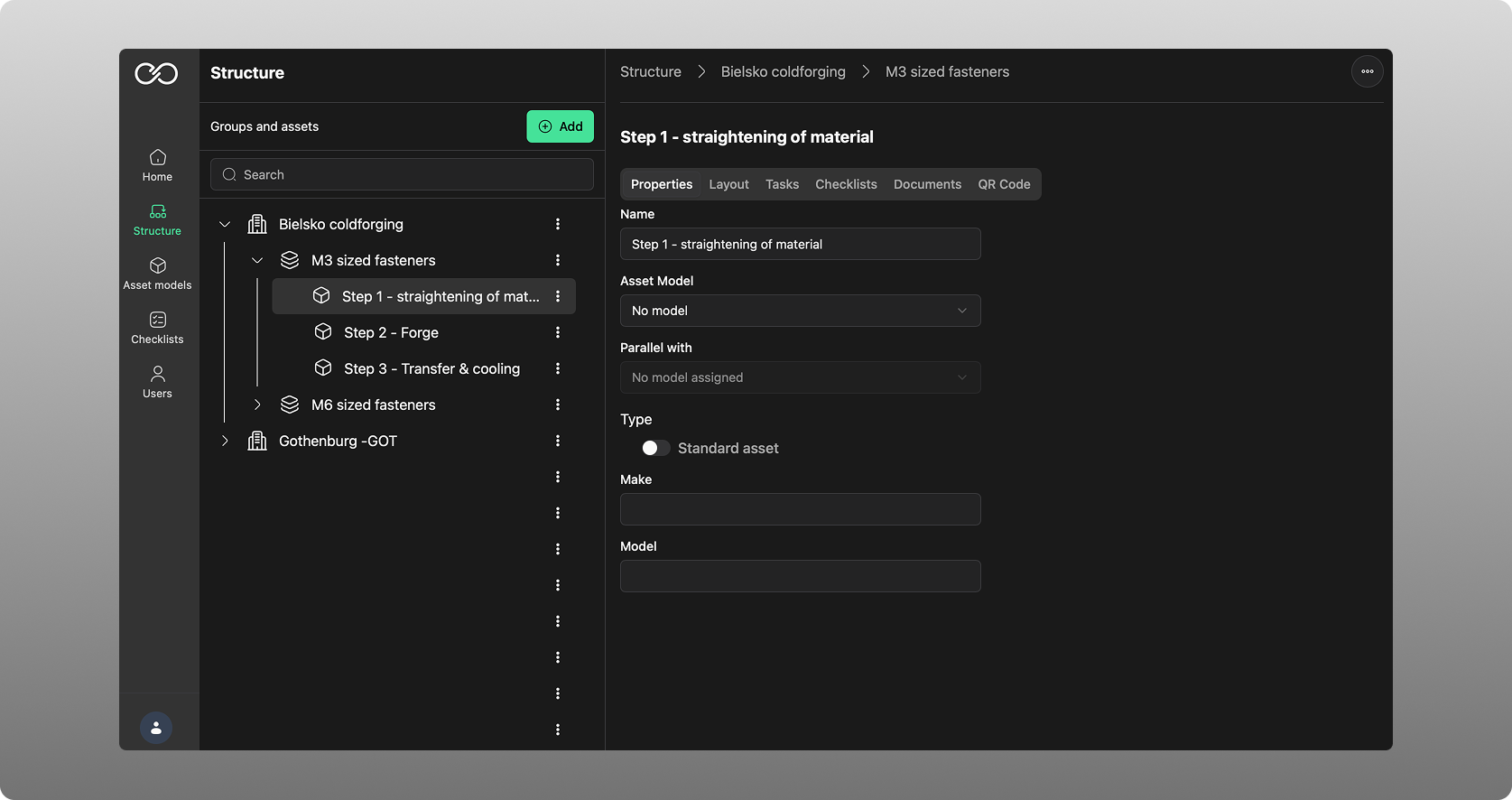
Within an asset, you can further define:
LAYOUT: as a difference to Groups, this layout focuses on defining the actual physical layout of an assetTASKS: Each asset comes with a set of standardized tasks that are defined under this section. They can be standalone / in parallell tasks / or sequential tasks.CHECKLISTS: Each asset can have a specific checklist that is just for that asset and can be chosen here.DOCUMENTS: For each asset, you can upload any amount of documents to support that specific part of a process or routine carried out by for example an operator
QR CODE: Here you can define a QR code that can be printed out and placed in the real station, to there give an express access point for any operator
Was this article helpful?
That’s Great!
Thank you for your feedback
Sorry! We couldn't be helpful
Thank you for your feedback
Feedback sent
We appreciate your effort and will try to fix the article