WIP
What you simulate
WIP simulates how work items flow through a process while tracking the amount of of work currently in progress at any given time.
The setup chain
The setup consists of a number of components that need to be configured. Each object depends on
the one before it: Begin at Plant and end at Scenario.
Plant | Top node. Sets Operator Speed and Operator Diameter. |
Asset Group | Hierarchical node under the Plant — Area, Line, …. |
Asset Model | Reusable workstation template (optional). |
Asset | An individual workstation. |
Feeding Asset | An external rack outside a workstation. |
Layout | Physical arrangement of Assets — version-controlled. |
Flow | Production sequence connecting |
Scenario | A Line Balancing or WIP run. |
Reuse existing structure to the largest possible extent.
AI assistance
There is the possibility to get deeper insight on all pages where there is an AI icon. The AI is not only
doing calculations and simulations, it is also context-aware and can answer questions about the page you are on, the line you are configuring, and the documents attached to the Plant or Asset Group.

Run WIP scenario
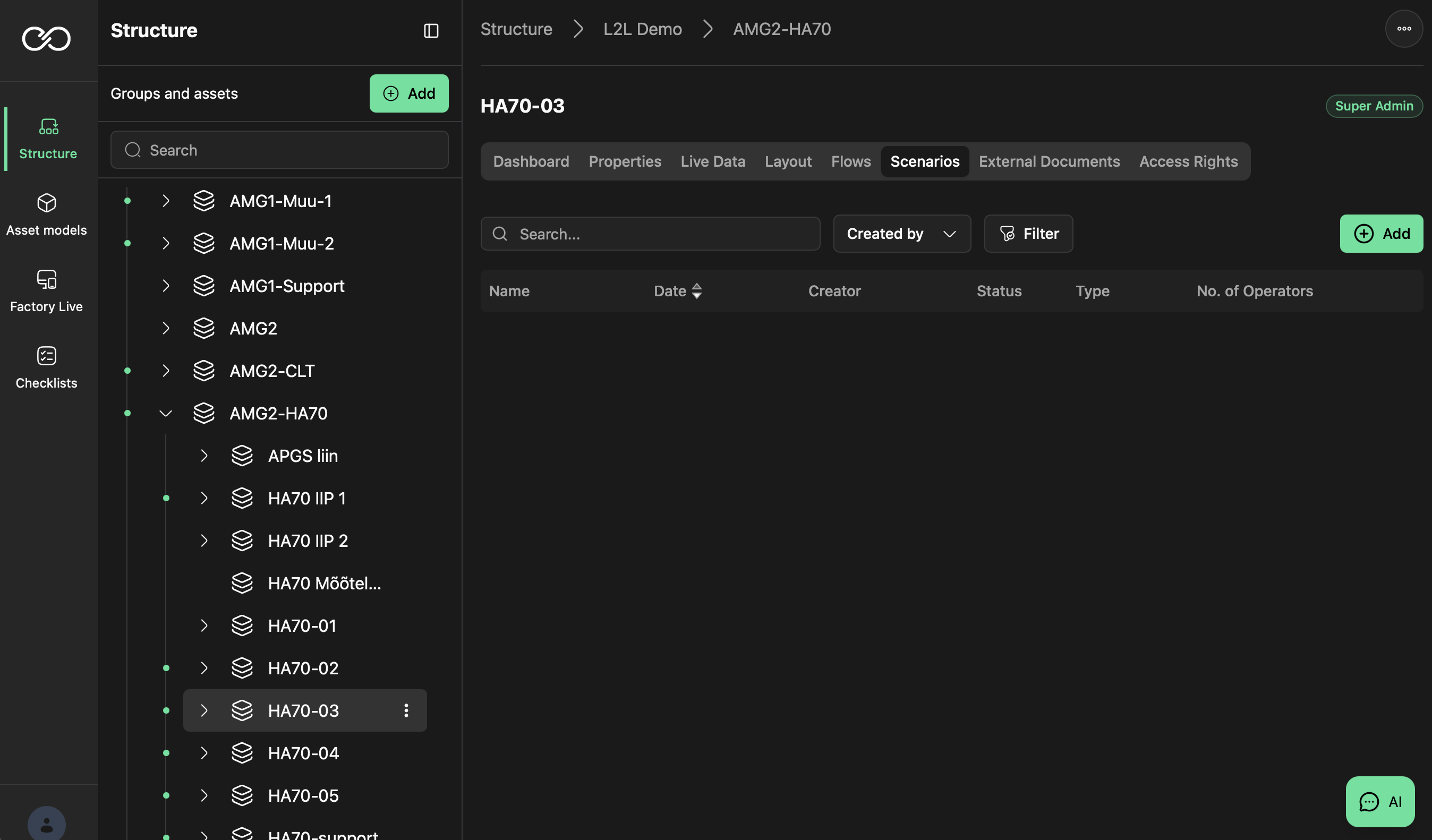
Add a new scenario from the line's Asset Group, configure it with the activated Layout and Flow versions, and launch the calculation.
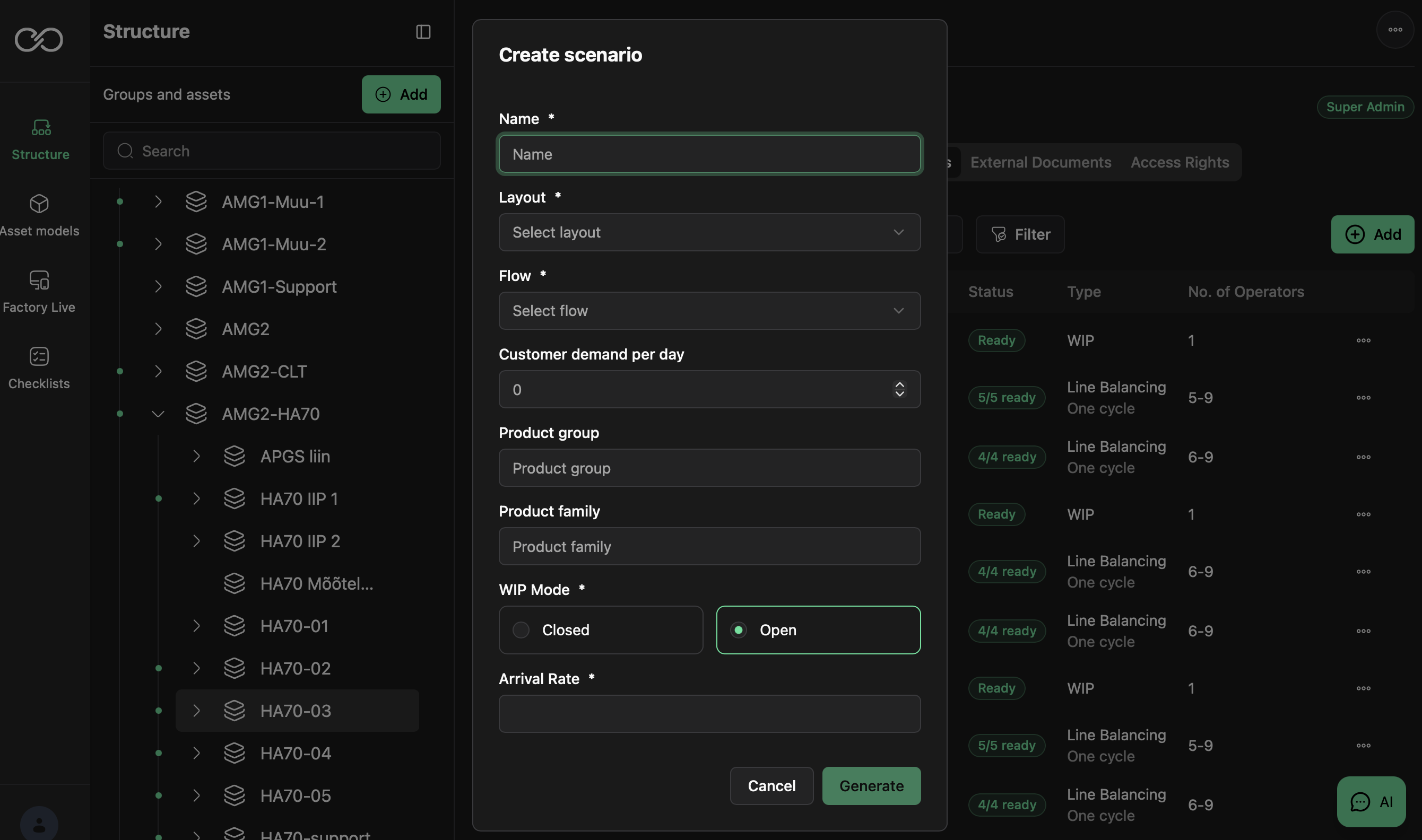
- Add a scenario by selecting Add and WIP.
- Set the name of the Scenario.
- Select Layout — the layout must be activated to be selectable.
- Select Flow — the flow must be activated to be selectable.
- Set Customer demand per day (optional — used to estimate the number of operators).
- Set Product Group (optional).
- Set Product Family (optional).
- Set whether to run an "open" or "closed" WIP calculation.
- Select the arrival rate to balance for.
- Select Generate.
Calculation time
A standard calculation takes between 30s to 2 minutes depending on the complexity.
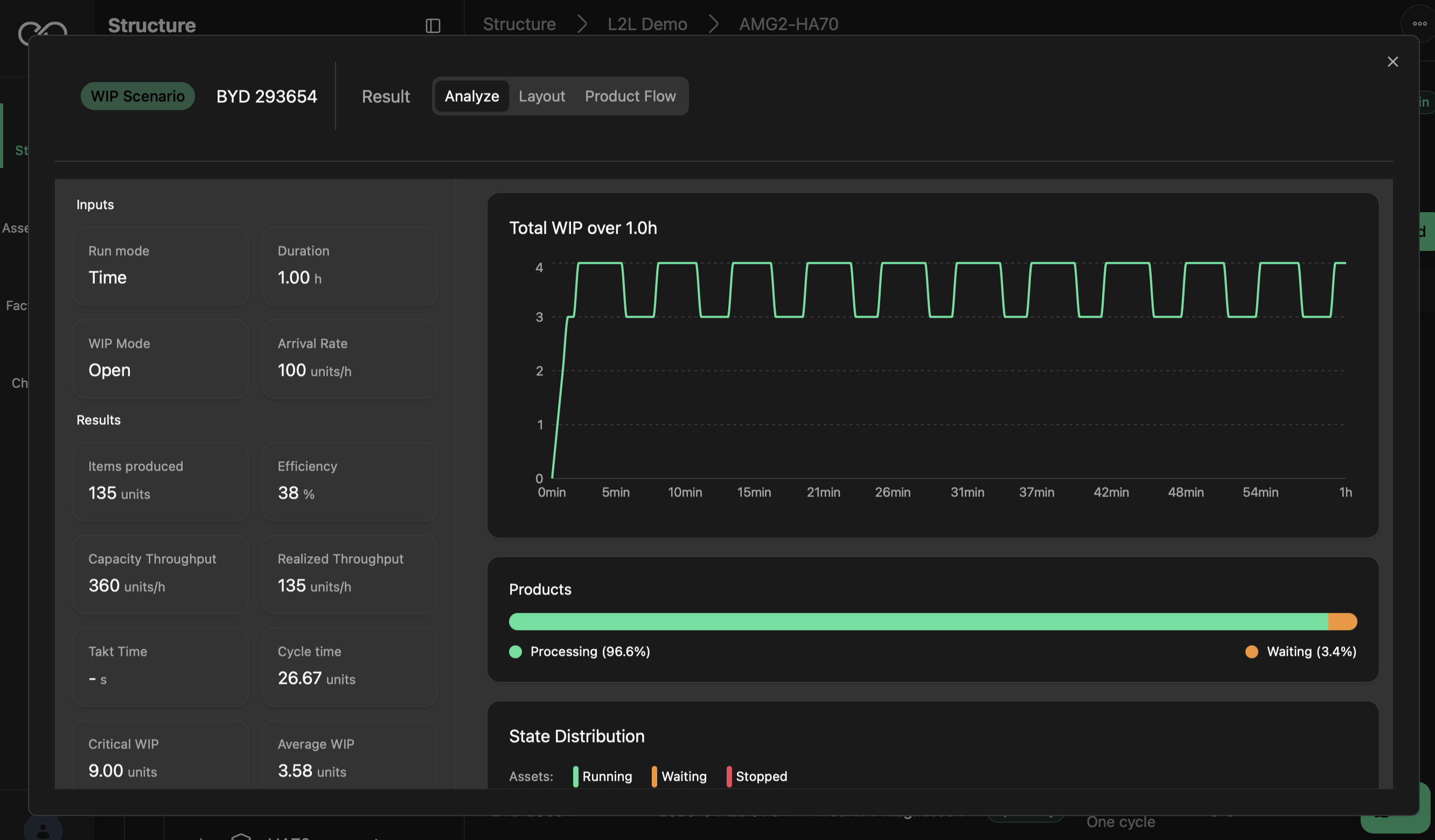
Result — Analyse
The Analyse tab of the result shows the WIP chart across the calculated period of time, together with input parameters and results in numbers. Below are also per machine running and starvation calculations and projections per asset included in the WIP calculation.
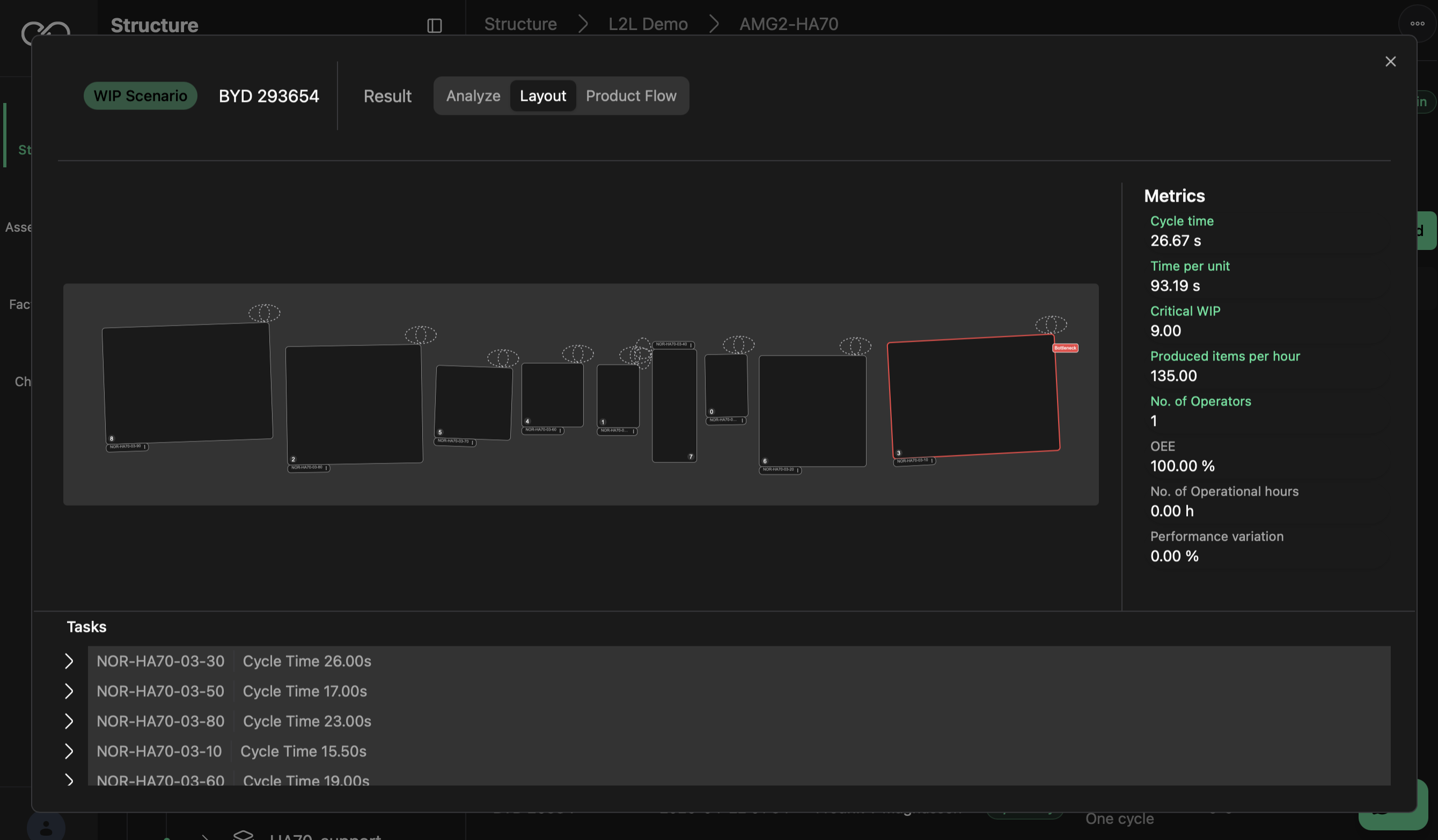
Result — Layout
Selecting the layout tab will show the actual layout of the machines, together with their associated metrics and tasks, identifying main bottleneck in the process.
Result — Product flow
The Product flow view allows you to play back the calculations through a period of time, showing the flow of the product and each step it takes in the process.
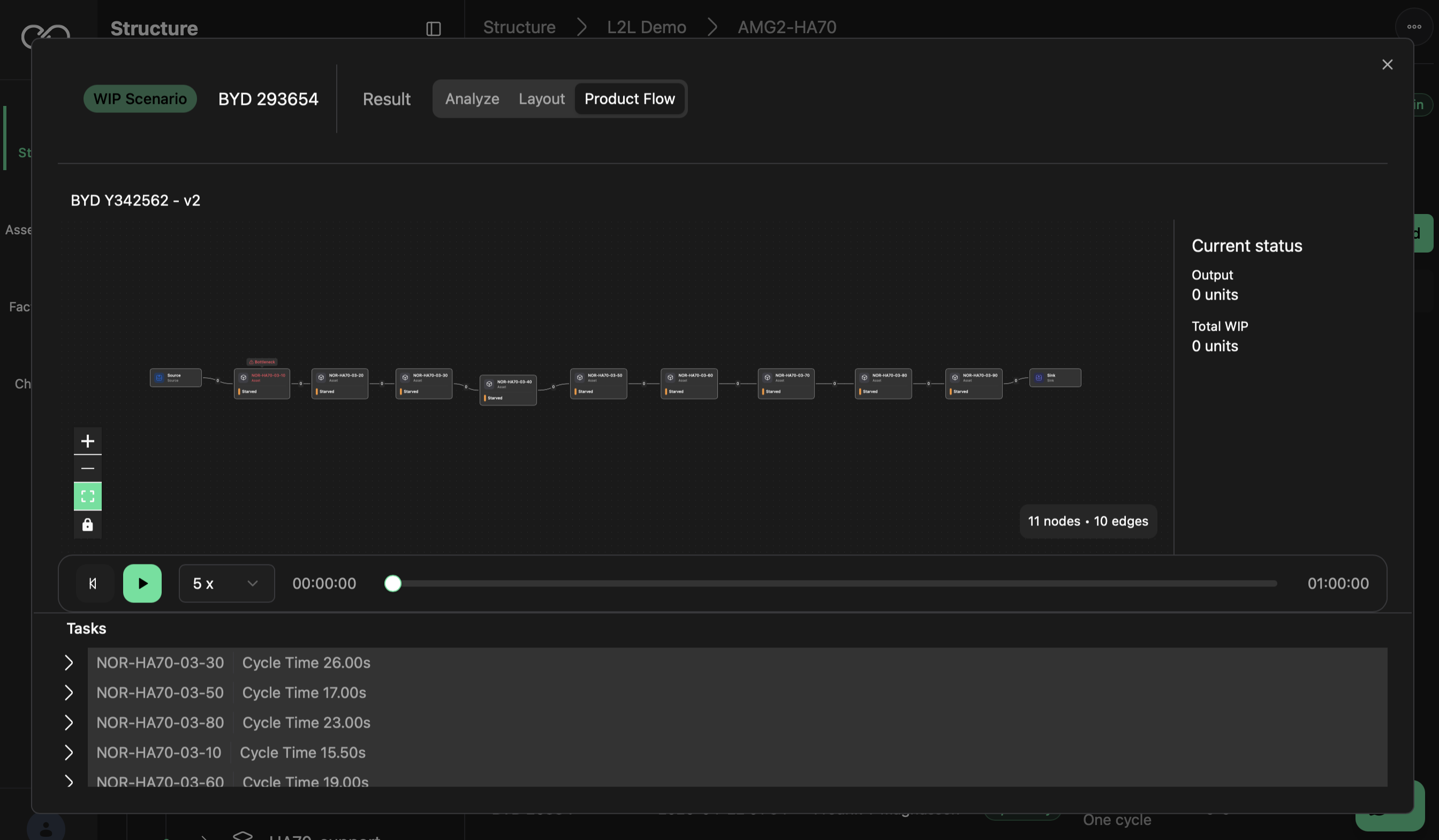
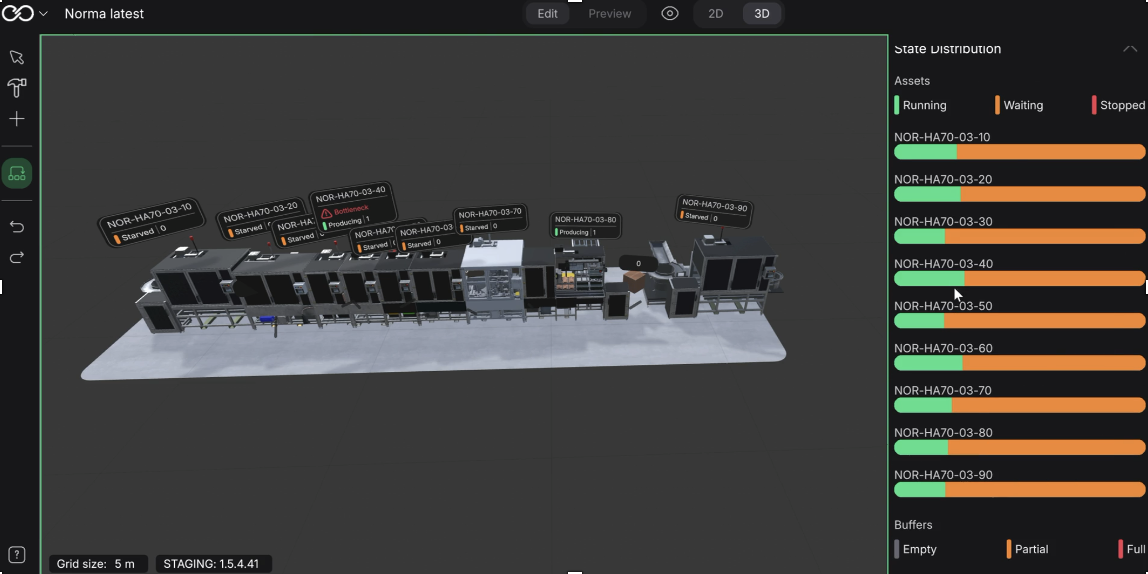
The product flow and WIP calculation with all of its details can also be viewed from a digital twin point of view, allowing you to allocate it related to real world visualization.
Was this article helpful?
That’s Great!
Thank you for your feedback
Sorry! We couldn't be helpful
Thank you for your feedback
Feedback sent
We appreciate your effort and will try to fix the article