This knowledge base is designed for operators / team leads and other operational roles in using Operator AI as a guidance for smoother and better everyday operations in their plant.
What Operator AI solves
Operator AI solves the day-to-day execution gap in manufacturing: it takes scattered operational data and transforms it into real-time, contextual, actionable guidance for frontline teams, boosting productivity, reducing errors, and creating a feedback loop that continually improves operations.
Core concepts
Operator AI is built around a few simple core concepts that make it easy to use in daily operations:
- It connects directly to live operational data and systems, and combines them into a single, unified operational flow.
- Relevant documents, procedures, and knowledge are indexed and searchable
- Context-aware guidance through AI industrial intelligence
Day 0: Access & setup
This phase focuses on removing friction and ensuring correctness so you can reach your first operational win as quickly as possible.
Goal: Become comfortable with the environment and establish a correct, scalable foundation. This typically takes 30–60 minutes.
Setting up access
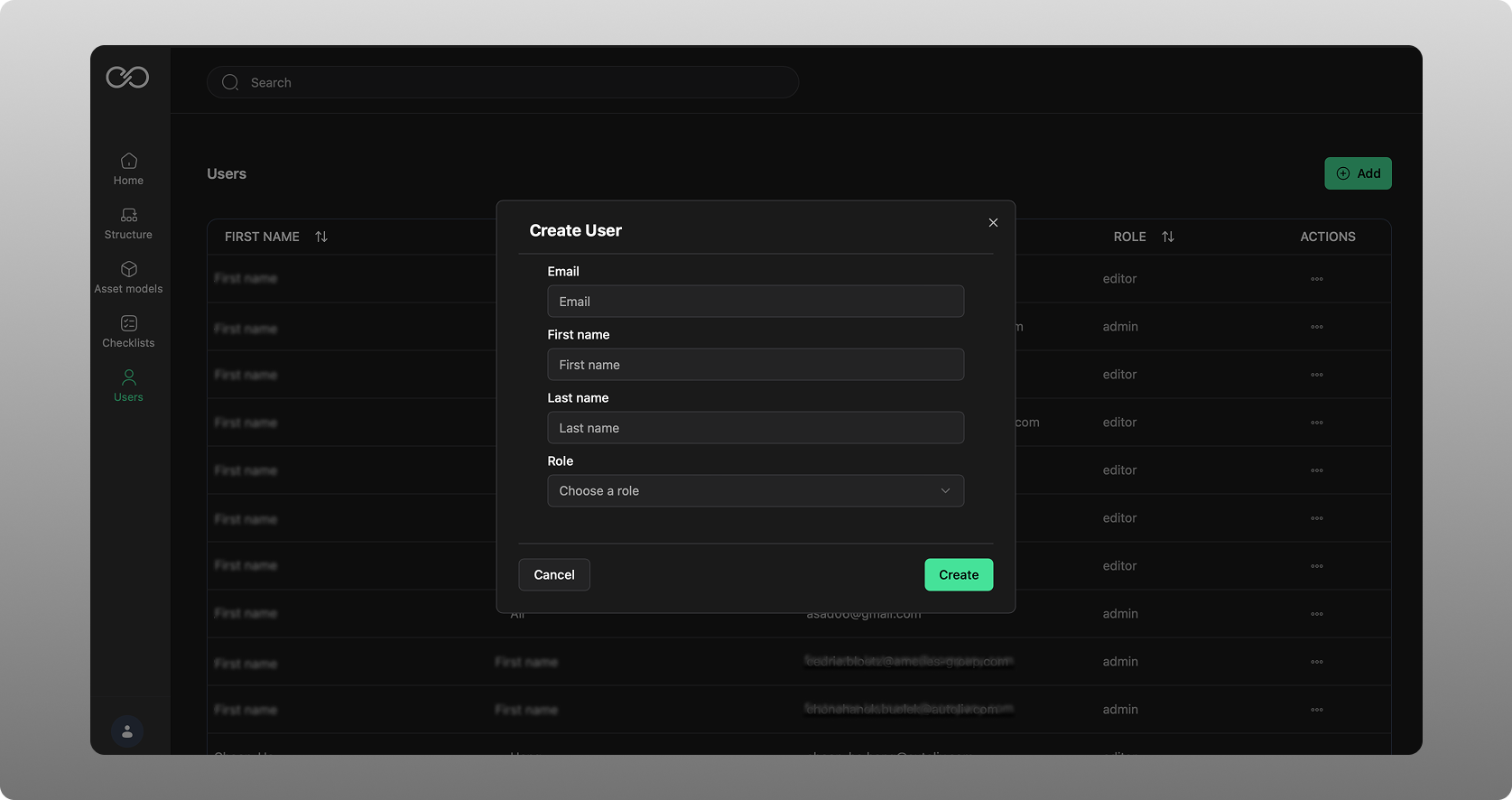
As an admin to Operator AI and for your company, you have a main menu item called “users”. Here you can go to add any and all users that should have access to the system.
Add email, First name and last name and a role for any user.
The roles available for a user are:
- Admin (Role / person responsible for managing the company installation of Operator AI)
- Editor (Role / person who is allowed to edit content and certain setup details)
- Viewer (Role / person who is allowed to view and consume what has been set up)
Getting access
It the solution has been integrated to your company’s AD, then you simply need to apply to get access through your internal process, and then as soon as that is approved you have then have access to Operator AI.
If receiving a username and password, go to your company admin to make sure they set up the account for you and login:
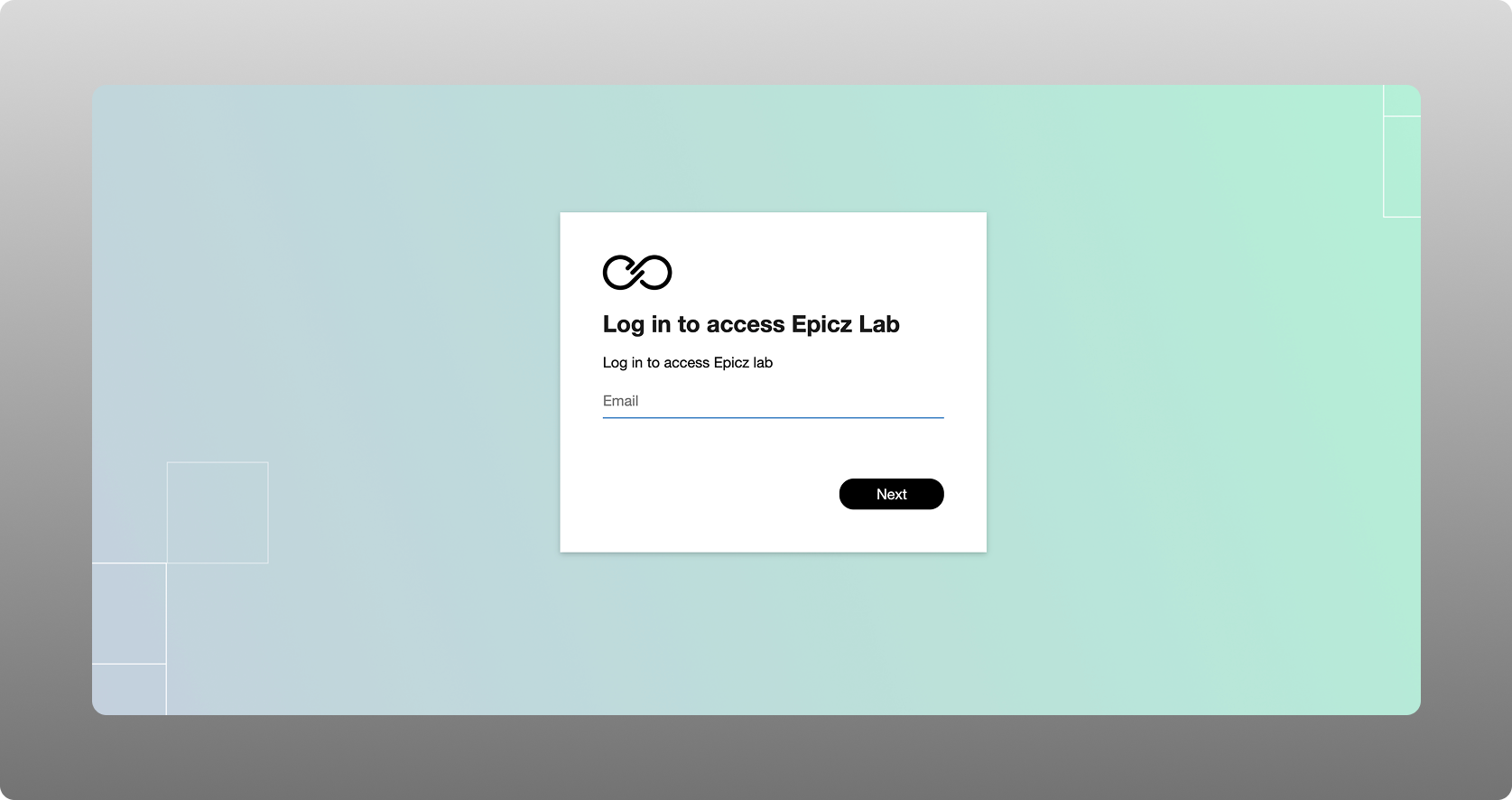
Get familiar with the portal, make sure you explore all functions and try it out.
Daily usage
Whether you are adding checklists or chatting with your intelligent AI assistant, simply scan the QR code and get to the right content, information and insights directly.
Was this article helpful?
That’s Great!
Thank you for your feedback
Sorry! We couldn't be helpful
Thank you for your feedback
Feedback sent
We appreciate your effort and will try to fix the article