Asset Group Flow
Build a model of how product moves through your assets.
Open the Flows tab
Open the asset group and select the Flows tab. Any existing flows are listed here.
- Search / Created by. Find or filter the listed flows.
- Columns. Name, Created, Last update, Creator, Type, Version.
- Add. Creates a new flow and opens the editor.
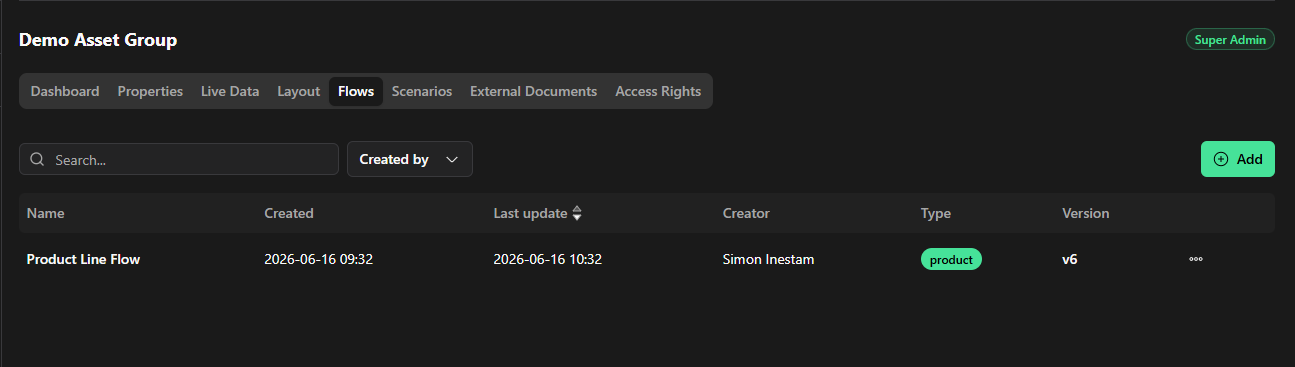
The Flows tab lists every flow in the group, with its version and creator.
Build the flow
The editor opens on a canvas. The left side holds the Source and Sink nodes and the group’s assets. The Saved indicator at the top shows the current save state.
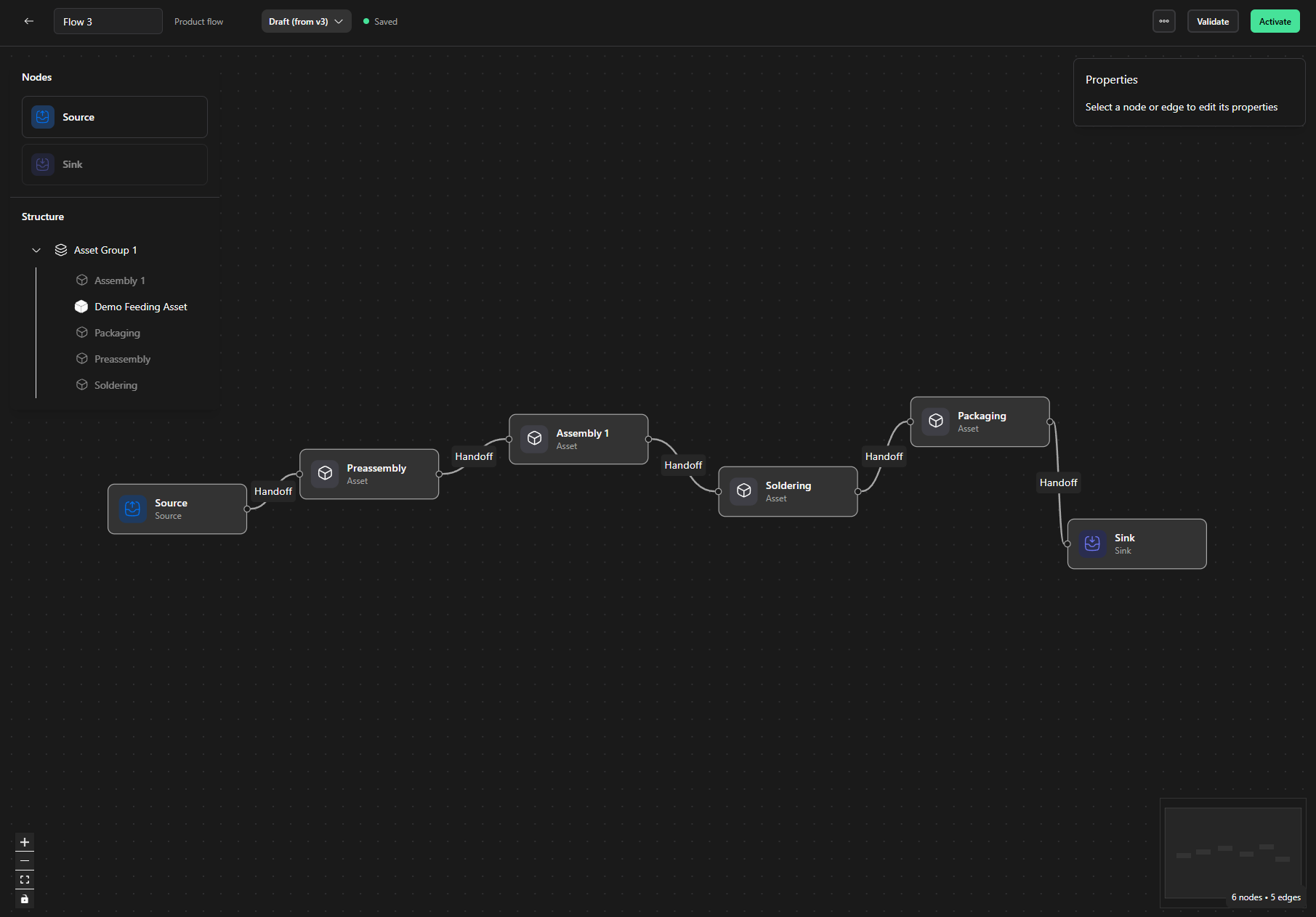
The flow editor: Nodes and Structure on the left, the canvas in the centre, the properties panel on the right.
Source
Drag Source from the Nodes panel onto the canvas, then click it to set the run mode — this decides when the flow stops.
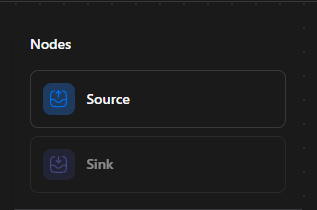
Click on the Source to set run mode.
Options: Time / Batch
Time - Stops after a set time. Runs for that long and takes in whatever arrives, regardless of how much.
Batch - Stops after a set number of items. Runs until that many are collected, regardless of how long it takes.
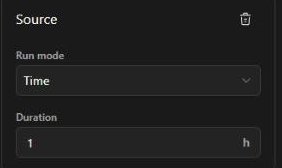
Source in Time mode: set the Duration in hours
Assets
Drag assets from the Structure panel onto the canvas. Click an asset to edit its parameters on the right.
- Cycle time. The asset’s processing time.
- Standard deviation. How much the cycle time varies run to run. 0 is perfectly consistent (always exactly the cycle time); a higher % adds randomness, so some cycles run faster and some slower around the average.
- Mean time between failures. On average, how long the asset runs before it breaks down. Leave it blank for no breakdowns.
- Mean down time. When it does break down, how long it is out of action before it is back up. Blank means none.
- Output buffer capacity (checkbox). A holding area after the asset for finished units. If the next step is busy, completed items wait here instead of blocking this asset. When on, set how many can wait. Off means no buffer, so the asset stalls if the next step is not ready.
- Tasks. The asset uses the tasks from its standard asset (shown by the linked name). Use Add to add a task.
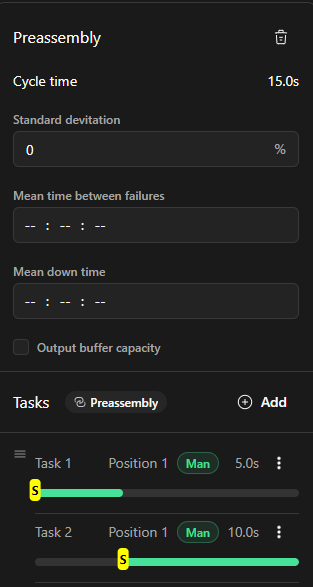
Asset parameters, including cycle time, variability, breakdowns, output buffer and the linked tasks.
Detaching tasks: detaching lets you customise tasks for this flow only — but once detached, model changes will no longer sync to this asset.
Feeding assets
Feeding assets can also be placed in the flow. Click one to set its buffer size on the right.
- Min buffer size. The fewest items the buffer holds.
- Max buffer size. The most items the buffer holds.
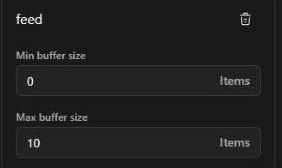
A feeding asset exposes a min and max buffer size.
Connect the nodes
Drag from the small dot on the side of an asset to the next asset to create a handoff. Assets can run in parallel.
Required: the Source must feed into the first asset, and the Sink must be the last node.
Edge settings
Click a connection (edge) to customise it on the right.
- Type. Handoff or Fetch. The settings below apply to Handoff.
- Speed. Transport speed in m/s.
- Transport type. Manual or Automatic.
- Accumulation conveyor (checkbox). When on, set Capacity, the number of units the conveyor can hold.
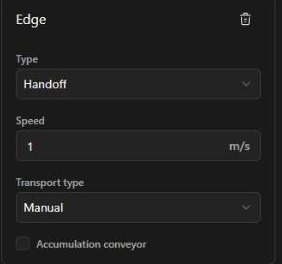
Edge settings for a Handoff connection.
Validate
Click Validate (top right) to check the draft. The result opens in a panel on the right. A clean layout reports Validated — No issues found.
Activate
When the flow is finished, click Activate to make it the active flow. A draft shows the Activate button in the top-right; once activated, that slot shows the version with an Active badge instead.
NOTE
Only a Flow that has been Activated becomes the group’s working Flow and is available to downstream features. While you are editing, your changes live in a draft
Versions
Different versions can be seen in the top-left corner, and the version number also shows in the Version column of the flows list.

The version selector lists each version; the active one is badged.
Was this article helpful?
That’s Great!
Thank you for your feedback
Sorry! We couldn't be helpful
Thank you for your feedback
Feedback sent
We appreciate your effort and will try to fix the article