Asset Group
What an Asset Group is
Asset Groups build the structure below a Plant. You can create as many levels as your organisation
needs — for example, Product Line → Plant → Area → Line. Every node in that chain is an Asset
Group containing other Asset Groups and Assets.
Documents assigned to an Asset Group are accessible to all Asset Groups and Assets beneath it in
the structure. The Asset Group has six tabs: Dashboard, Assets, Properties, Layout, Flow, and
Scenarios.
Dashboard
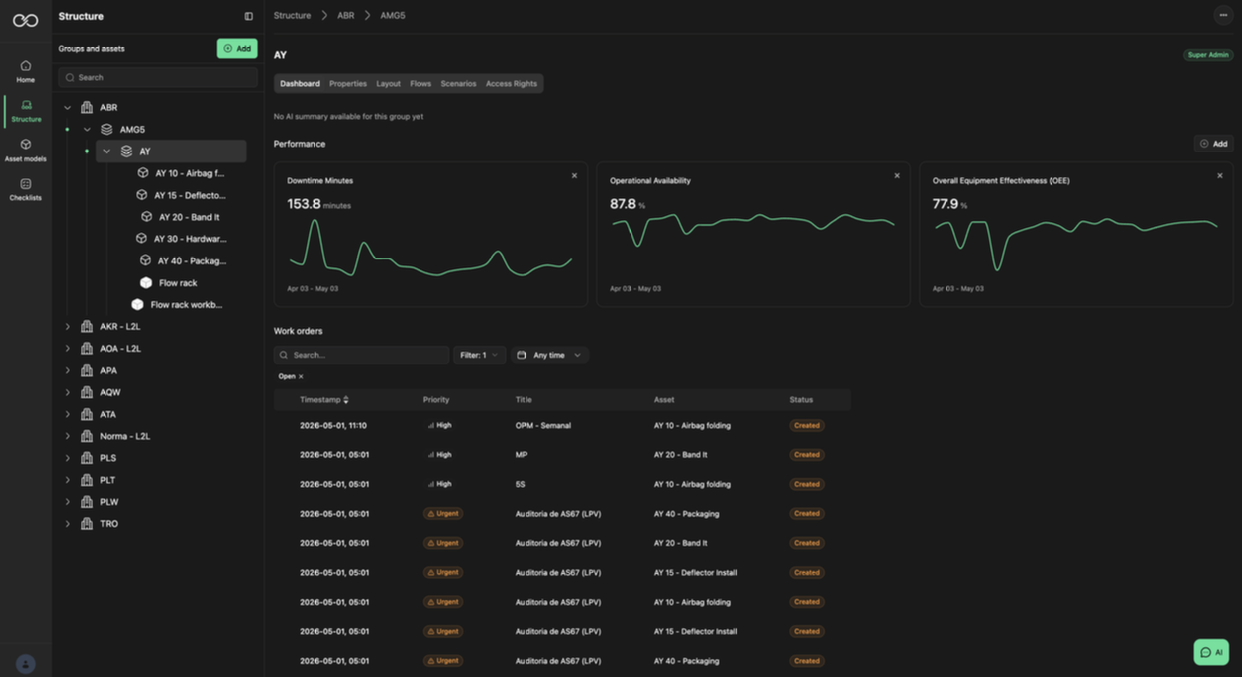
The Dashboard is the overview of the Asset Group. It shows performance KPIs and Workorders. With
a connection to your backend system, the KPIs and Workorders appear here live.
Assets
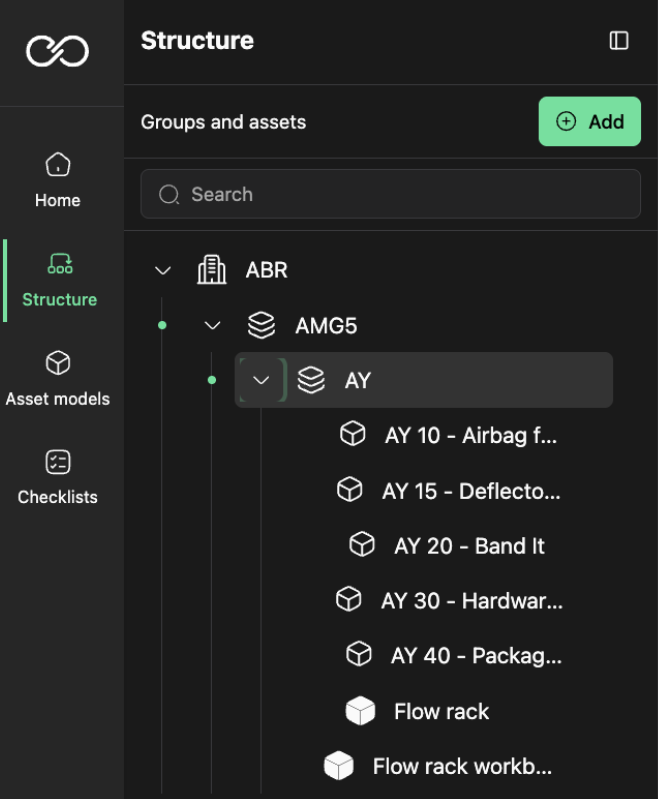
The Assets tab lists what you add in the structure on the left-hand side — typically the machines on a
Line. A green dot in the structure indicates that the Asset has live data connected.
Properties
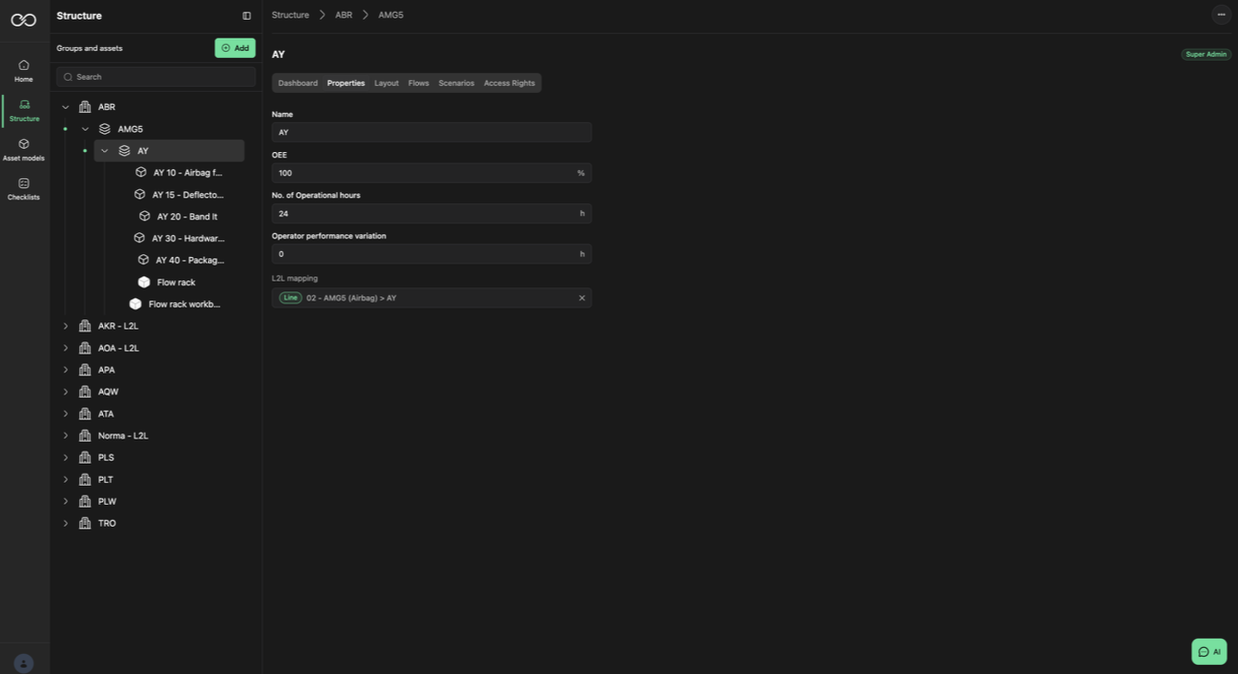
Properties holds the basic information of the Asset Group:
- Name — Name of the Asset Group.
- OEE — The OEE for the Asset Group, on aggregated level.
- No. of Operational Hours — Hours per day the Asset Group is operational. Maximum 24 h.
- Operator Performance Variance — Variance in operator performance. 0 = no variance, 100 = full variance.
Layout
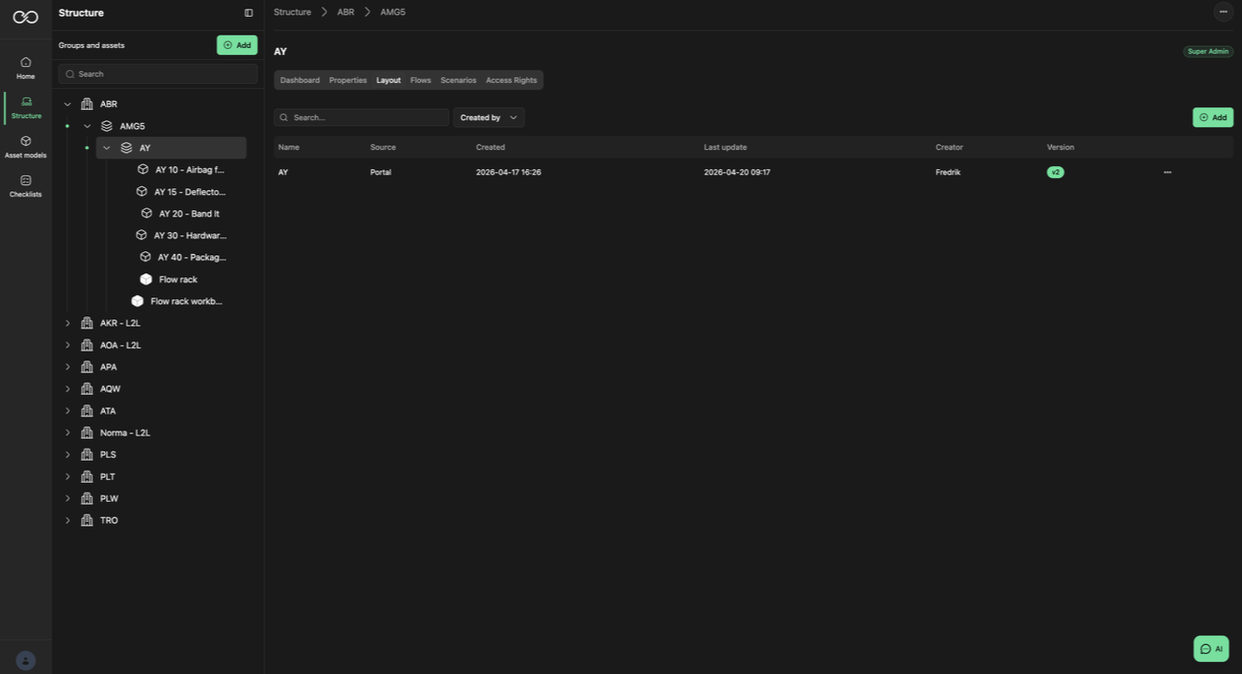
The Layout tab is where you define the physical layout of the Asset Group. All Layouts are version
controlled.
Layout — View
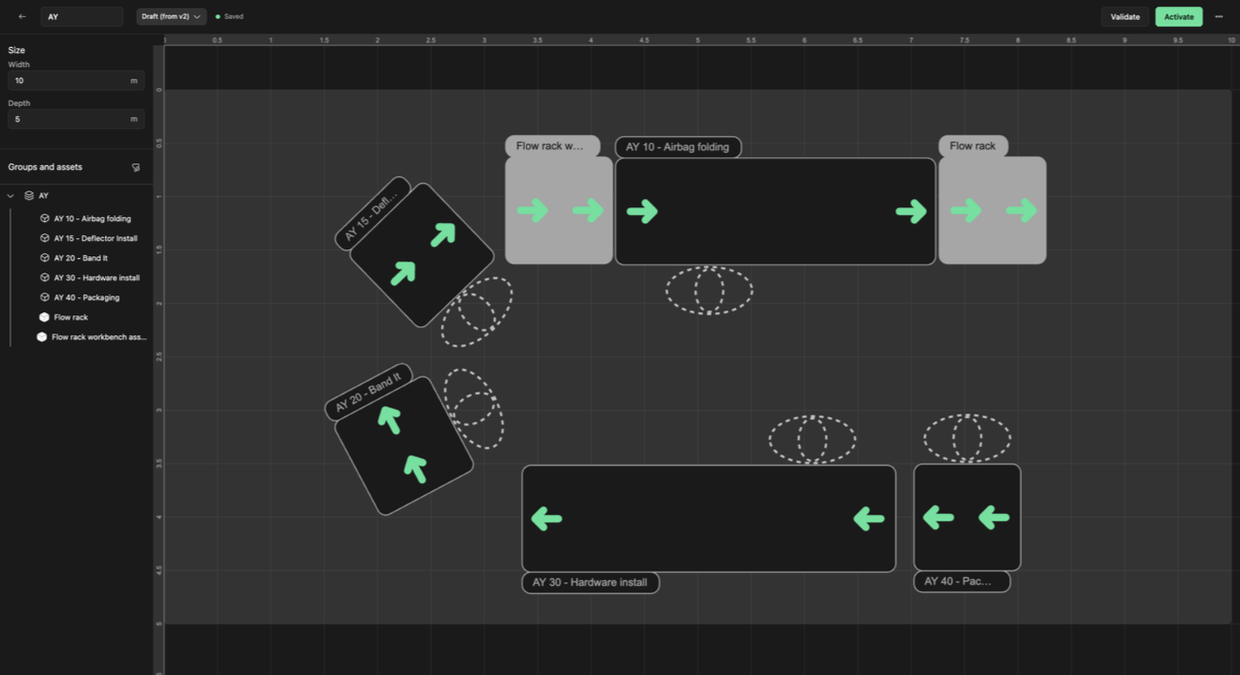
The Layout view is where you define the physical arrangement of the line.
- Name — must be set to save the Layout. Set in the upper-left corner.
- Size — set the layout size by adding Width and Depth on the left.
- Add Assets by selecting them on the left and moving them to the right into the layout.
- The Layout's version is shown next to the Name.
Layout — Details
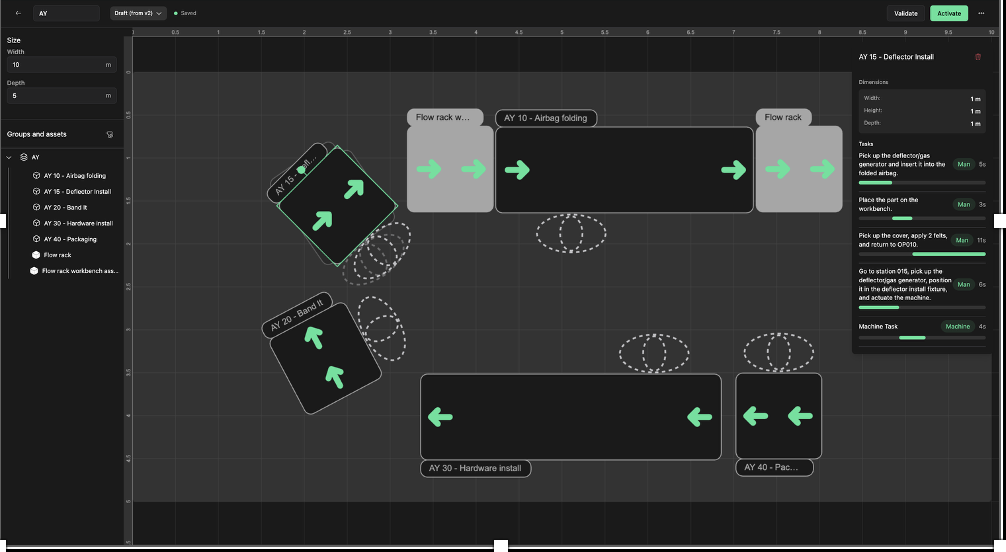
Selecting an Asset in the Layout lets you rotate it and see more details about it. You can also delete the asset from the Layout via the upper-right corner.
Flow
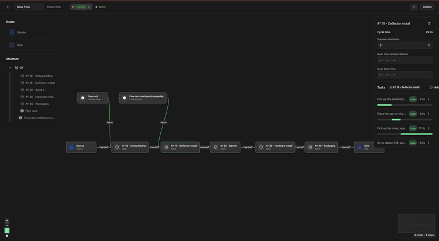
The Flow tab is where you define the logical flow of the Asset Group — typically the production or material flow through a line. All Flows are version controlled.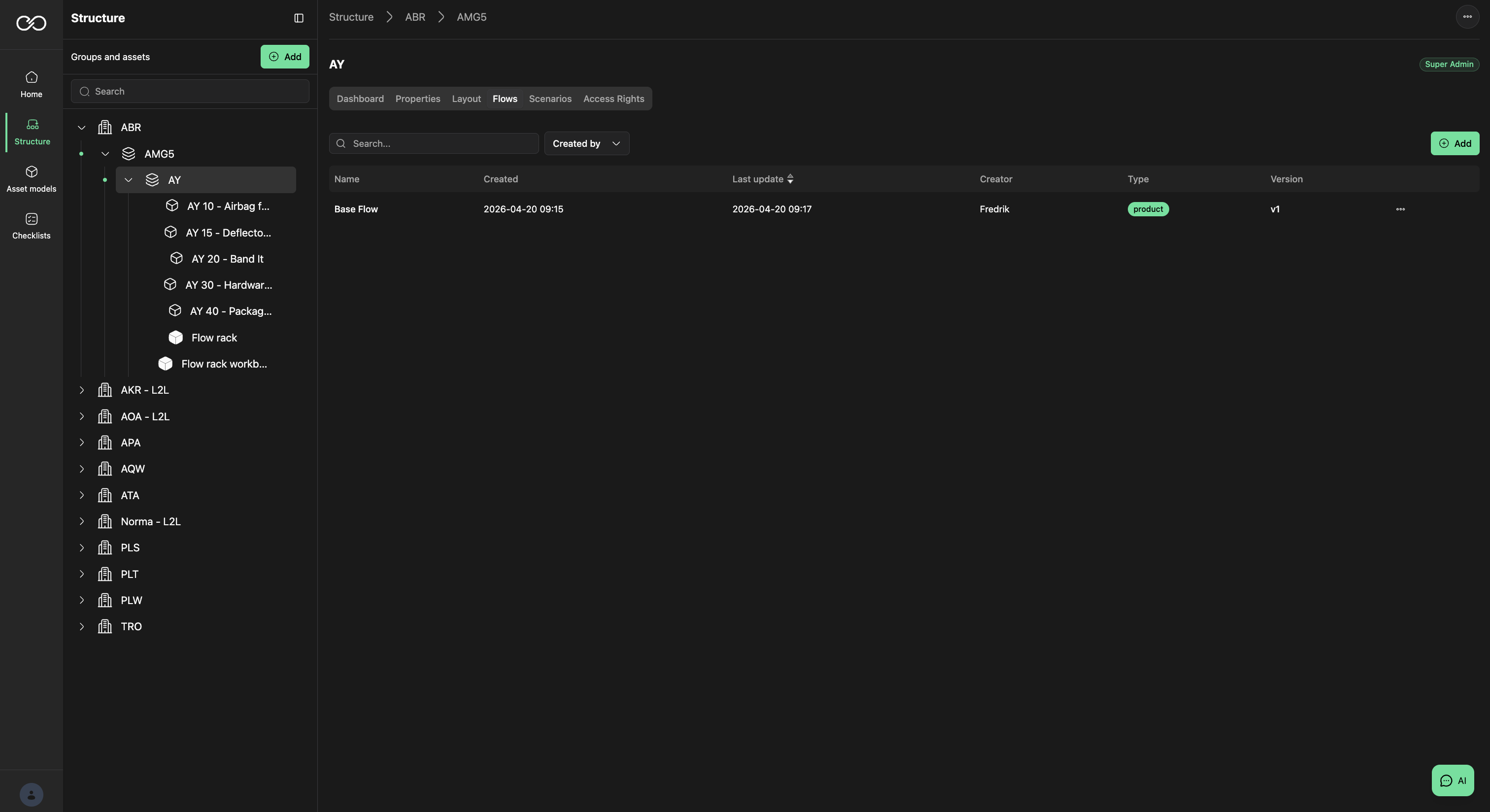
Flow — View
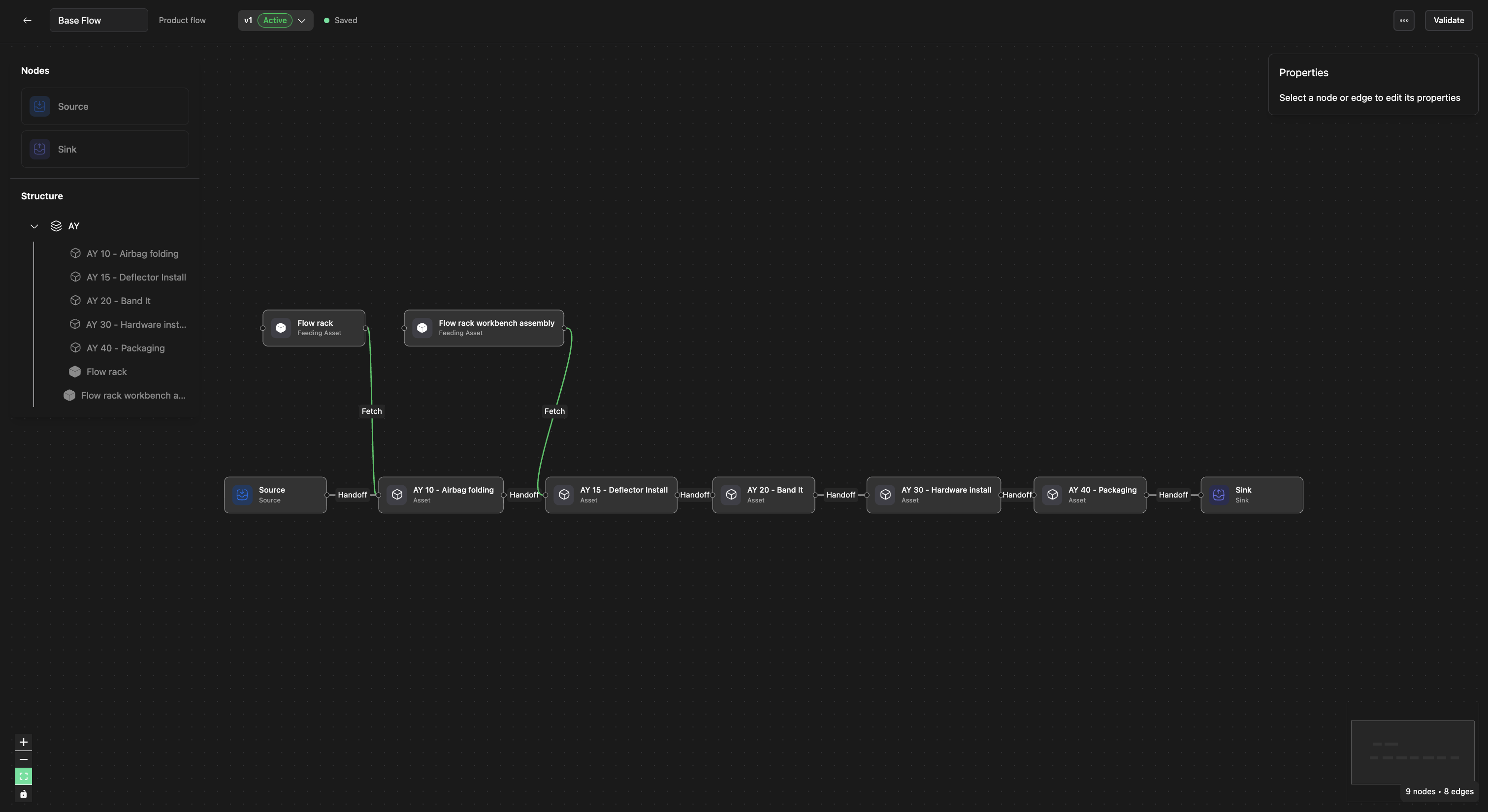
The Flow view is where you define the logical flow — the production sequence in which Assets are used. Add Assets by moving them from the left structure to the layout on the right. Always set the Name of a flow in the upper-left. Next to the name you can see the active version and roll back to an earlier one.
Each Flow starts with a Source and ends with a Sink. You can have multiple Sources but only one Sink. Source = Start, Sink = End.
Flow — Details
Selecting an Asset in the Flow lets you see more details and delete the asset from the Flow.
Scenarios
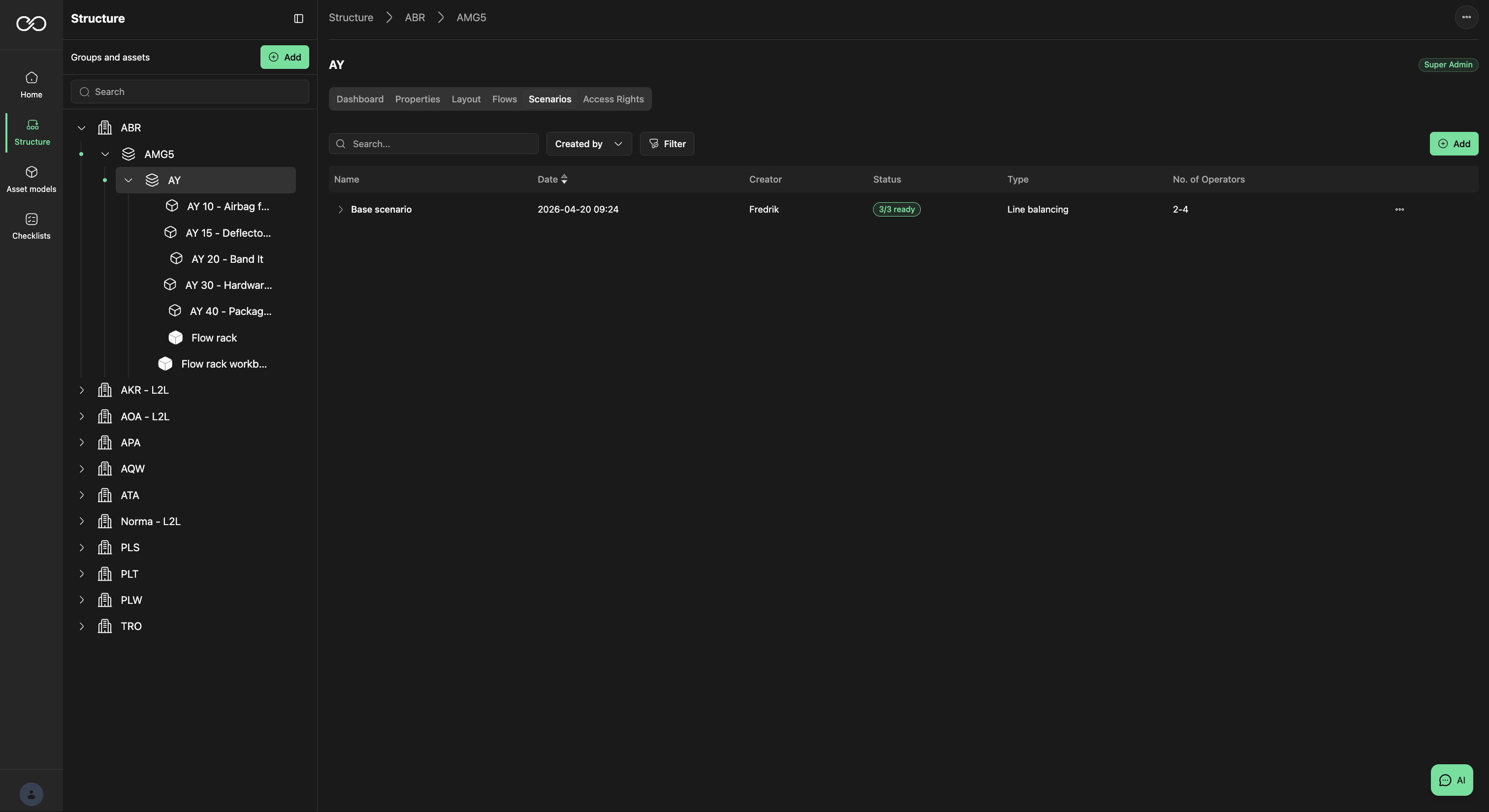
The Scenarios tab is where you run simulations such as Line Balancing and WIP. The results of past scenarios are visible here.
Was this article helpful?
That’s Great!
Thank you for your feedback
Sorry! We couldn't be helpful
Thank you for your feedback
Feedback sent
We appreciate your effort and will try to fix the article