This phase focuses on removing friction and ensuring correctness so you can reach your first operational win as quickly as possible.
Creating Your First Project in Factory Live
We will go through the steps for you to successfully be able to create your factory in Factory Live.
Creating a new project (private/public)
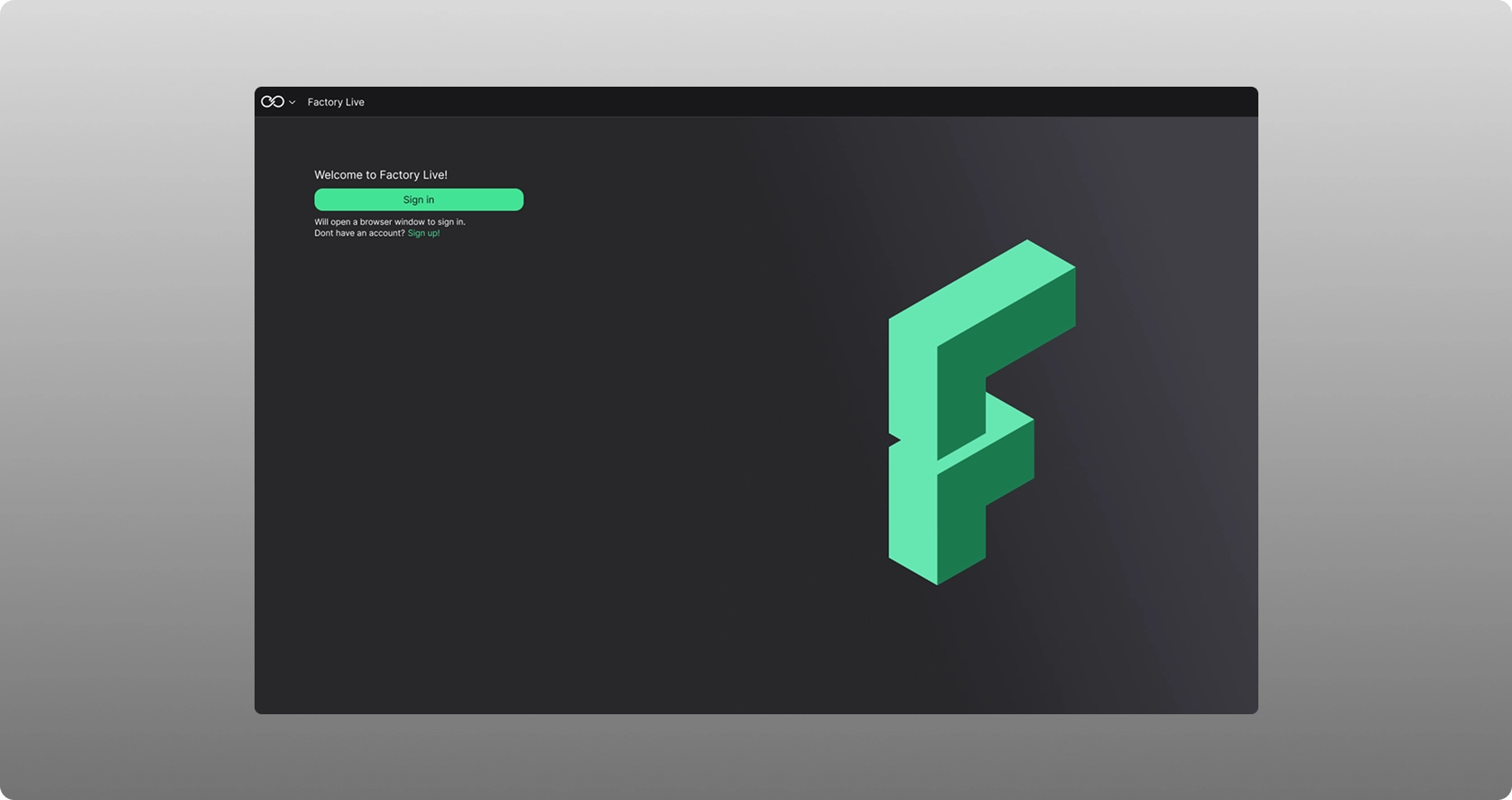
Open the Factory Live application. As a first step you will have to login and accept the terms and conditions:
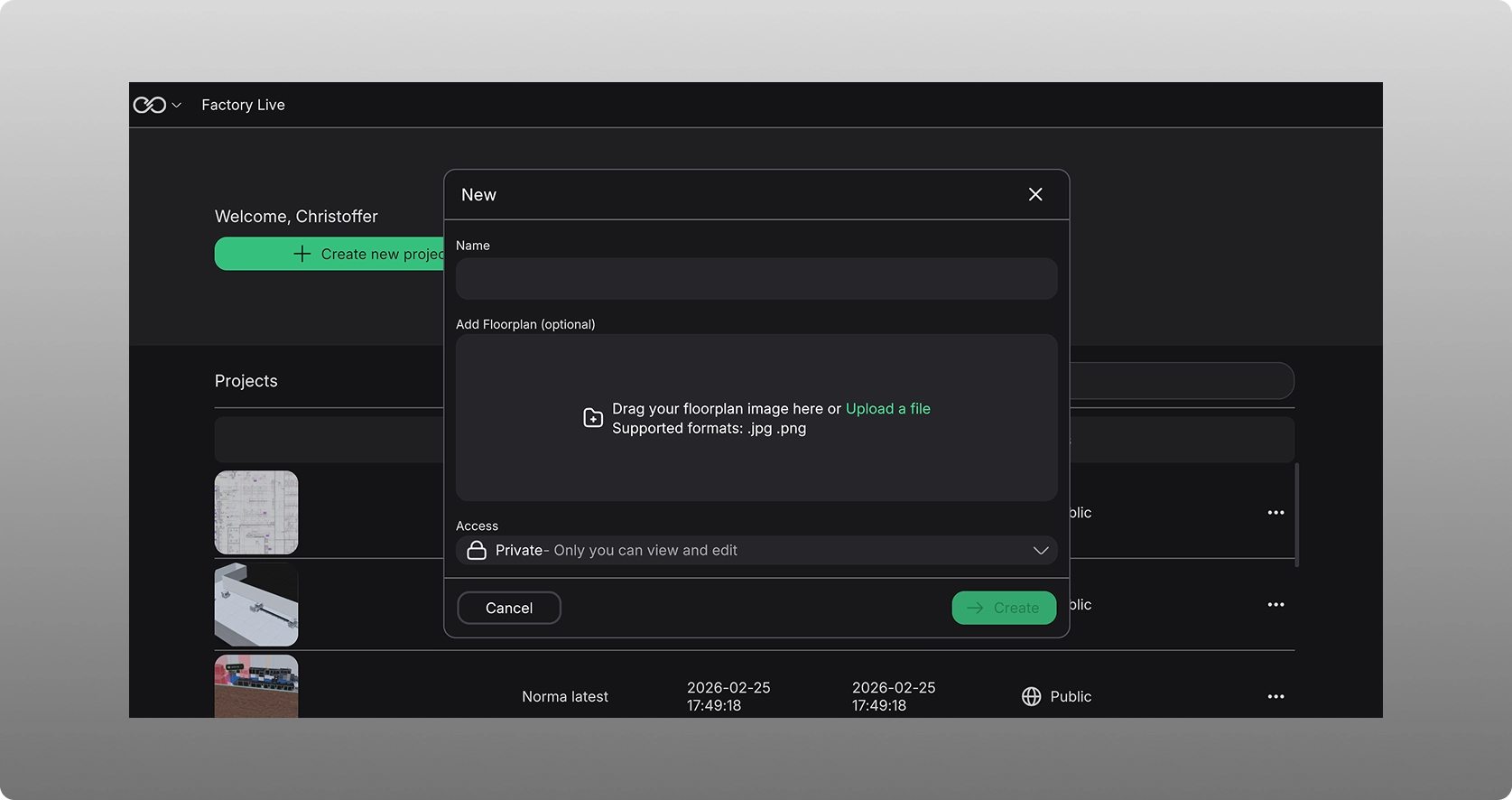
Next, you will come to the starting view of Factory live where you can create a new plant / project:
- Give the project / plant a name
- Add a floorplan if wanted that will act as a blueprint by selecting "upload a file" (The format today can be .png or .jpg)
- Make it private (only for your eyes) or public (anyone in the company can see it)
Once created, you come to the main scene. the main tool selection is in the left menu once you press edit in the top menu:
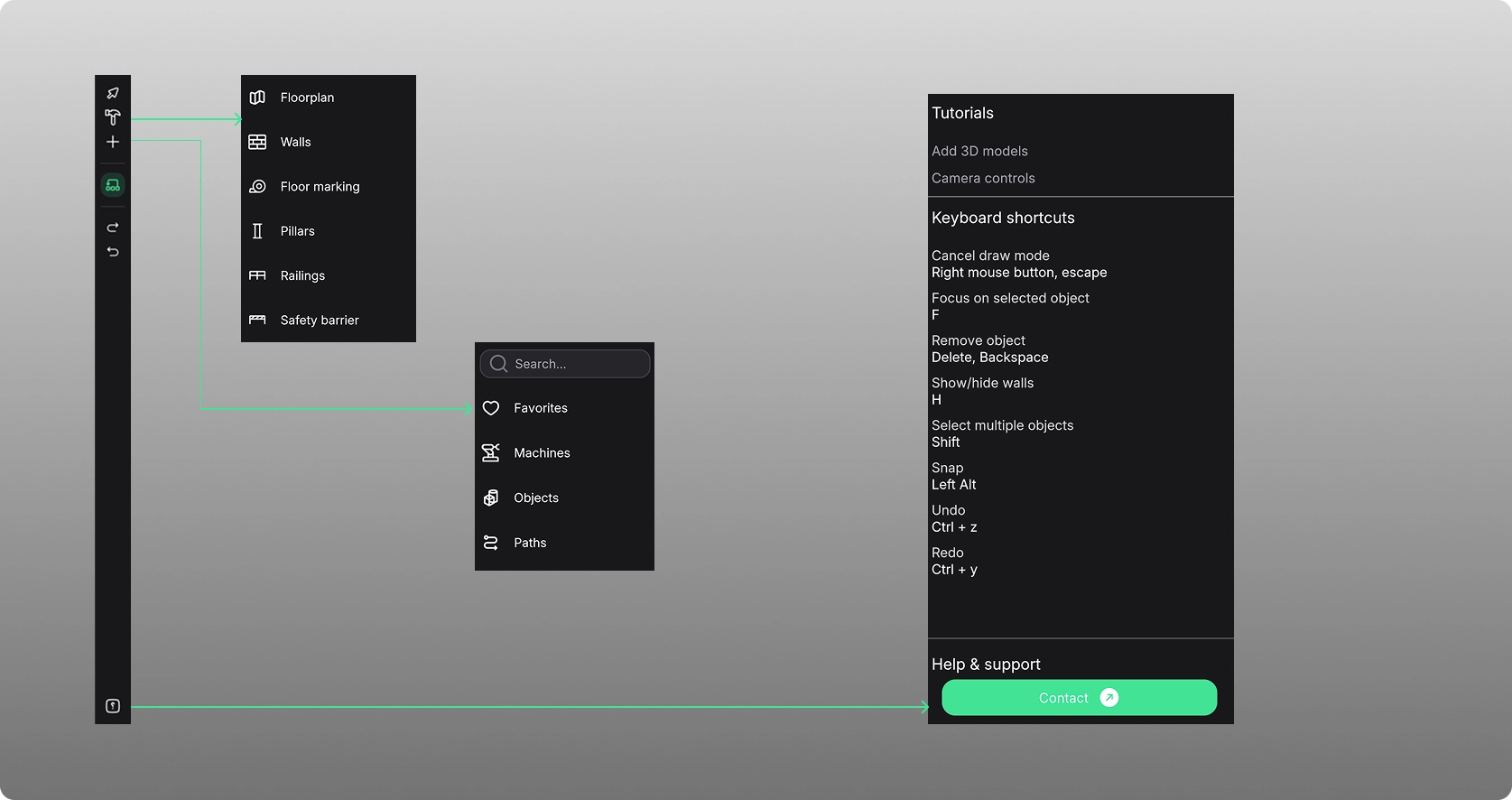
Hammer / build menu
Floorplan - lets you input a floorplan if you did not do so when creating the project.
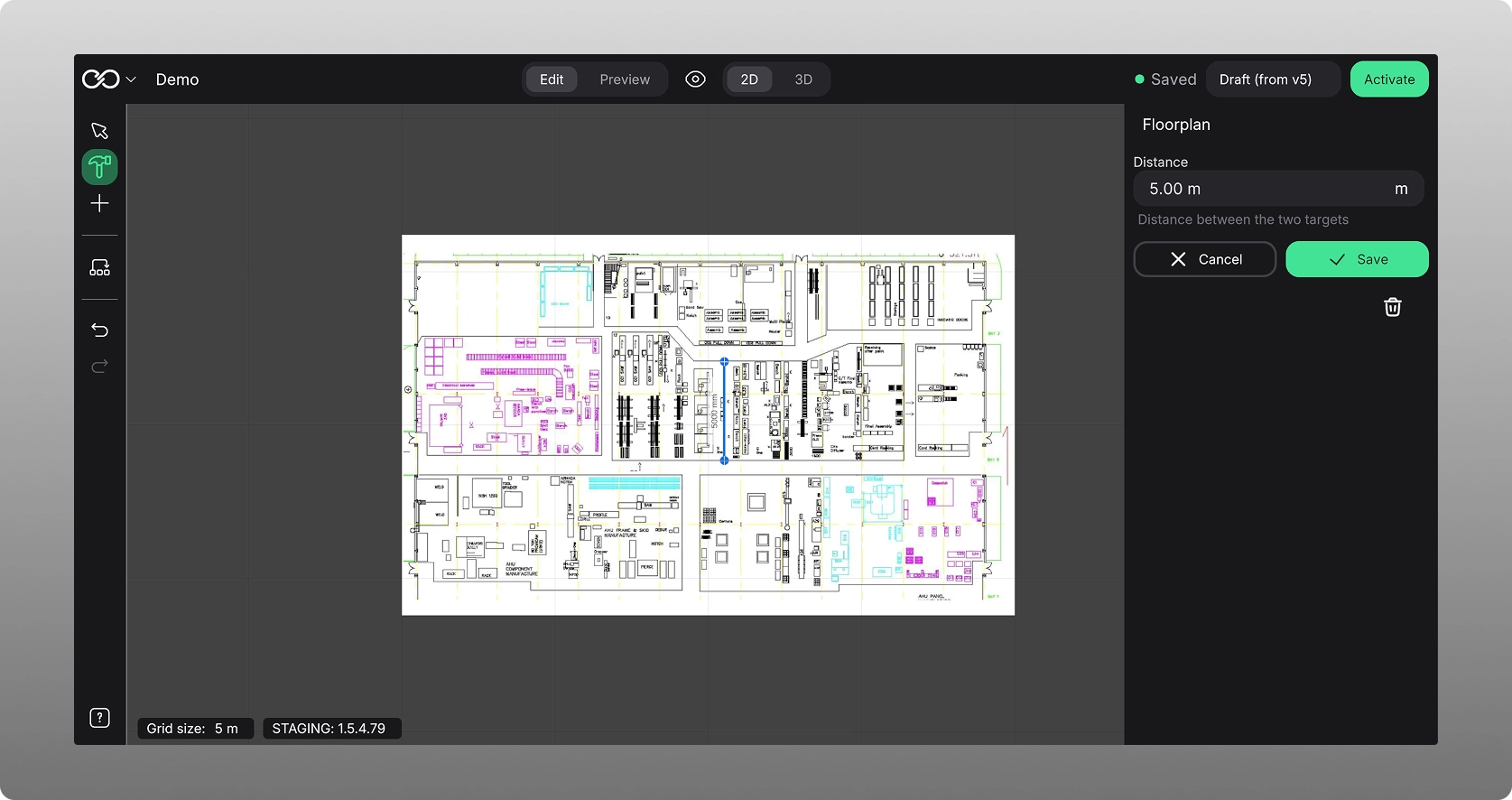
- Press it to choose a floorplan to add
- set the distance to in order to create a correct scale
- and Save
You can always adjust the transparency of the floorplan to have it show more or less when showcasing or working with your factory and digital twin.
Walls - Allows you to either follow the walls of a floorplan or simply input a wall according to your factory layout.
Floor marking - Allows you to add floor marking in your factory.
Pillars - Allows you to input pillars according to your internal structure.
Railings - Allows you to add railings within your plant.
Safety barrier - Allows you to add safety barriers.
The “+” sign
Favorites - Contains all the assets you have chosen as favorites.
Machines - Assets that make up the machines you have in your Factory.
Objects - These are assets that are used for any factory typically. Windows and doors for the walls can be found here as well.
Paths - Contains flows that you can set up as well as conveyor belts that interconnect your machinery.
Help menu - Located on he bottom of the left hand menu is help and support. it lists all the main keyboard shortcuts..
The top menu
The top menu is there to allow you to edit your project or only preview it. For viewers only, they can only view and not edit for example. it also allows you to see your plant from a topological 2D point of view, or from a navigational 3D view.
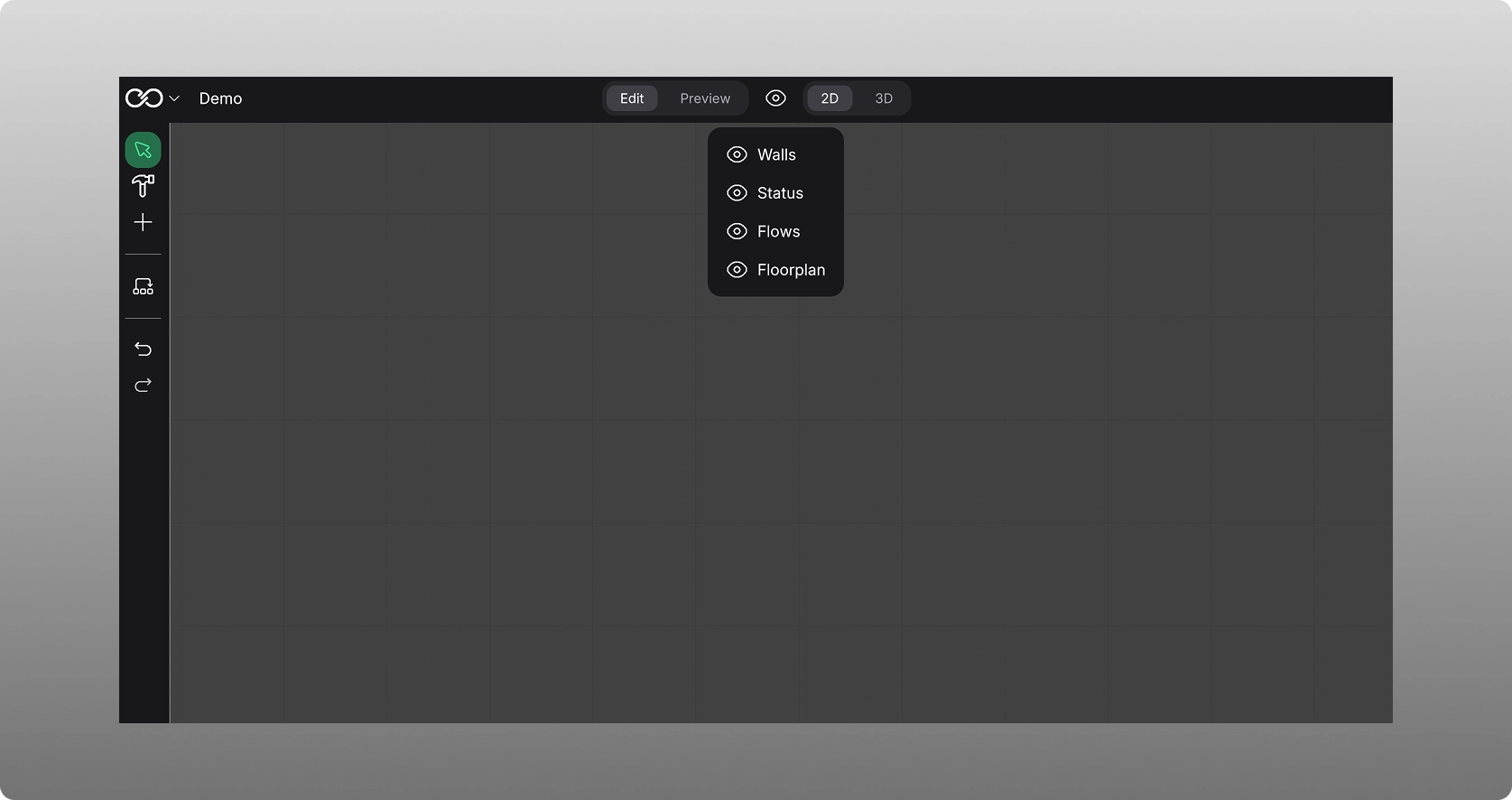
The eye allows you to enable or disable various interactions in the project, such as walls, status of machine, flows, and floorplans.
Saving your project
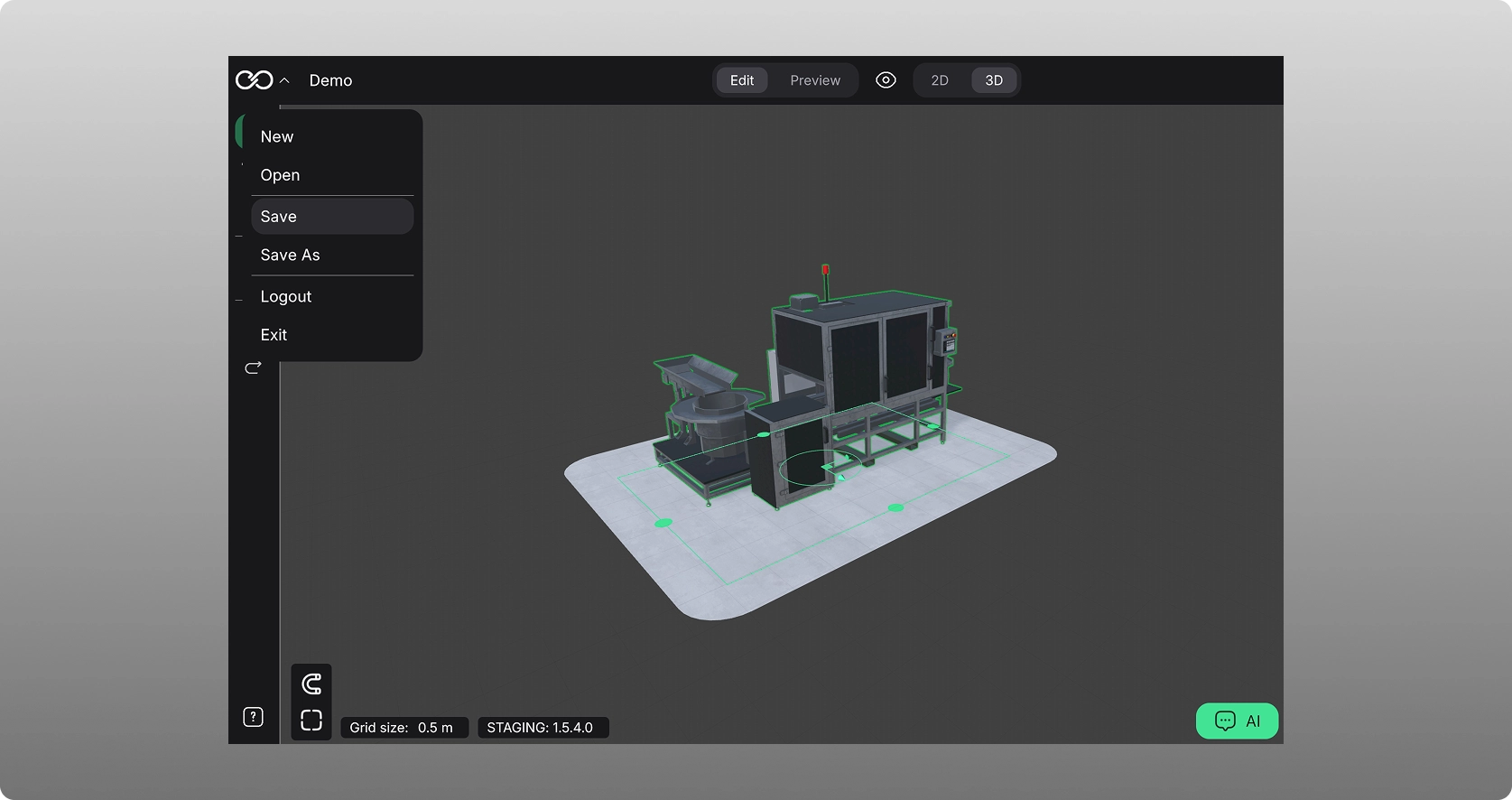
Your project is automatically saved every five min. if you want to do a manual save in between, simply press main icon in top left corner, and choose save.
Version control
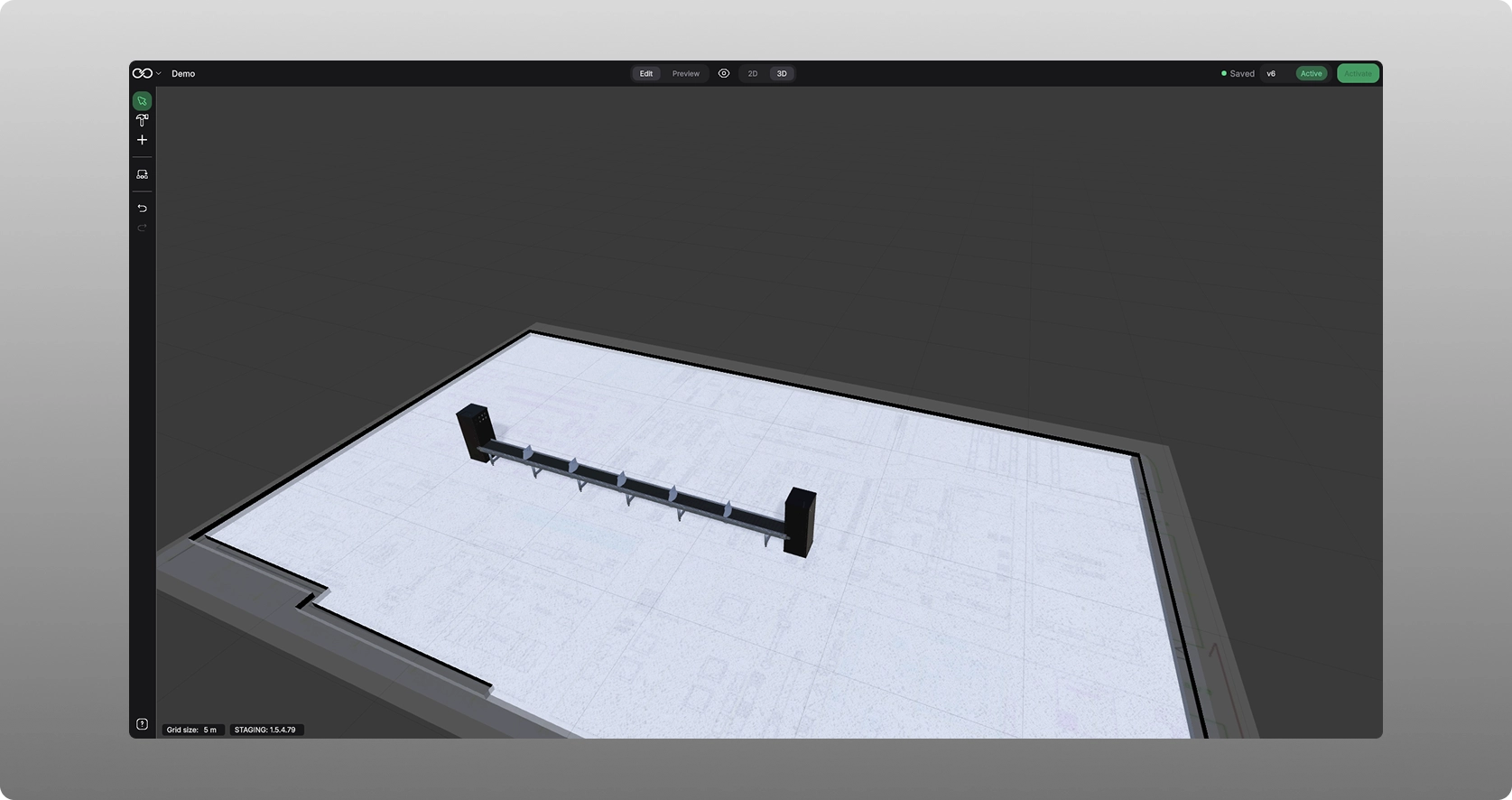
You can also choose to save a new version of your Factory. Do this by simply pressing the button “Activate” on the top right side of the application. It will then save a new version and you will be able to see how many versions you have, and you can at any time switch to any of the old versions:
Controls, Hotkeys, and Shortcuts
Object selection - press on the asset you want to select, and it is selected
Copy & paste assets - Choose the asset, ctrl c, navigate to the place in the scene and press ctrl v to paste a copy of the asset. You can also select a group of assets by holding down the “shift” key and pressing on each asset you want selected.
Measuring tool - Press M, and you can measure any distance within your plant
Hide walls - Press H, and the walls with windows and doors are hidden.
Undo / Redo - Ctrl + z for undo, and Ctrl + y for redo.
Navigation
To navigate in your space you can use both a mousepad, or even better an external mouse. Through it you can zoom in, zoom out, rotate, and go anywhere in the scene in the project.
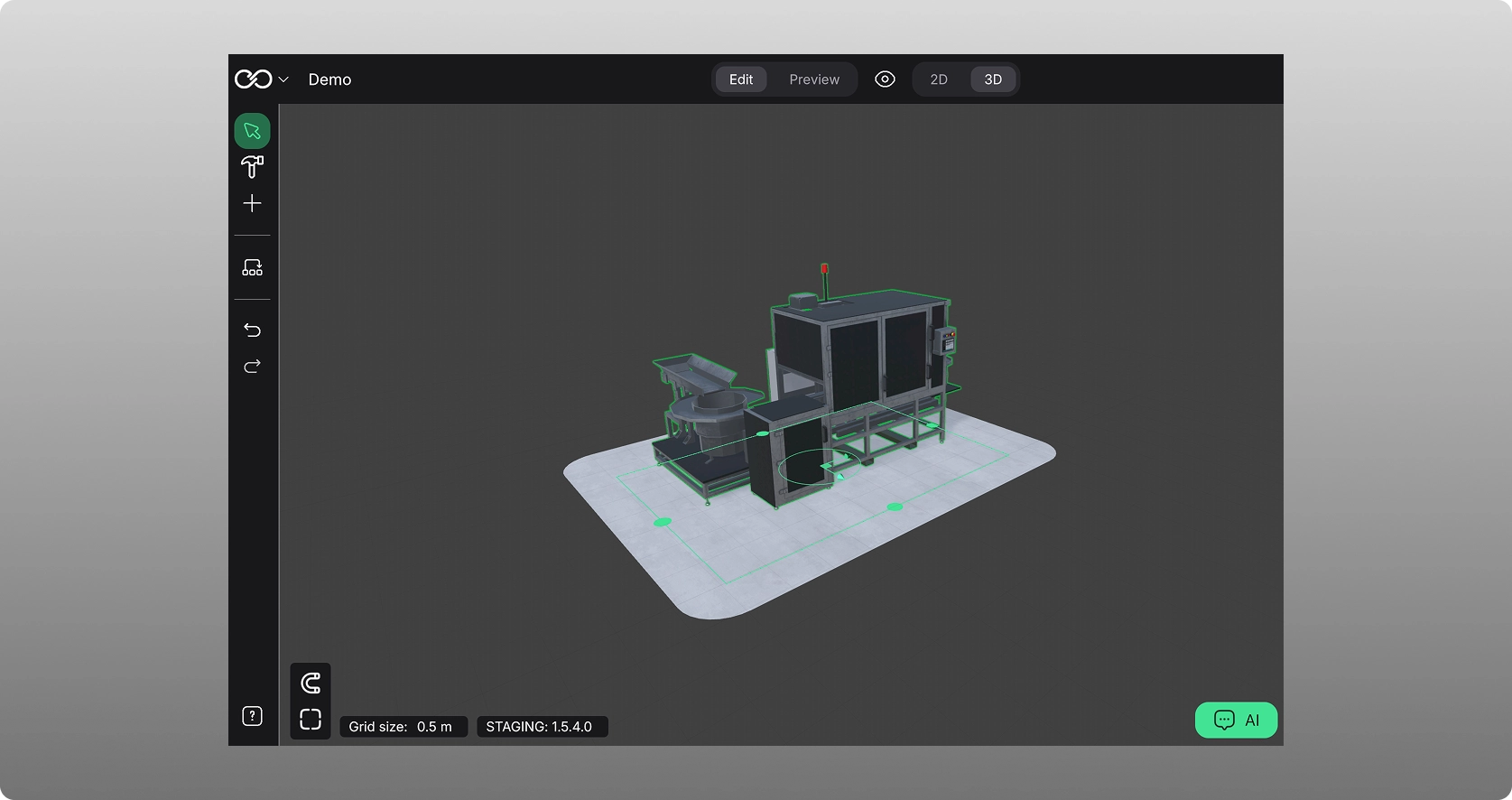
Turn an asset - Select the asset, press the green ring to turn it and drag the mouse in one direction.
Move an asset - Select the asset, press either arrow to move it in that direction, or choose the main square to move it in either direction
Was this article helpful?
That’s Great!
Thank you for your feedback
Sorry! We couldn't be helpful
Thank you for your feedback
Feedback sent
We appreciate your effort and will try to fix the article