Paths
In order to connect machines between each other or to create illustrations within your plant, you can select to define a path or a flow.
Once an asset is placed in the scene, choose it, and you will notice it has 4 nodes connected to it (a circle with a x). Choose one of these nodes, and a menu will appear, allowing you to add a conveyor belt or a flow.
When you choose a conveyor belt, you can then draw to where it goes, or connect it to another machine: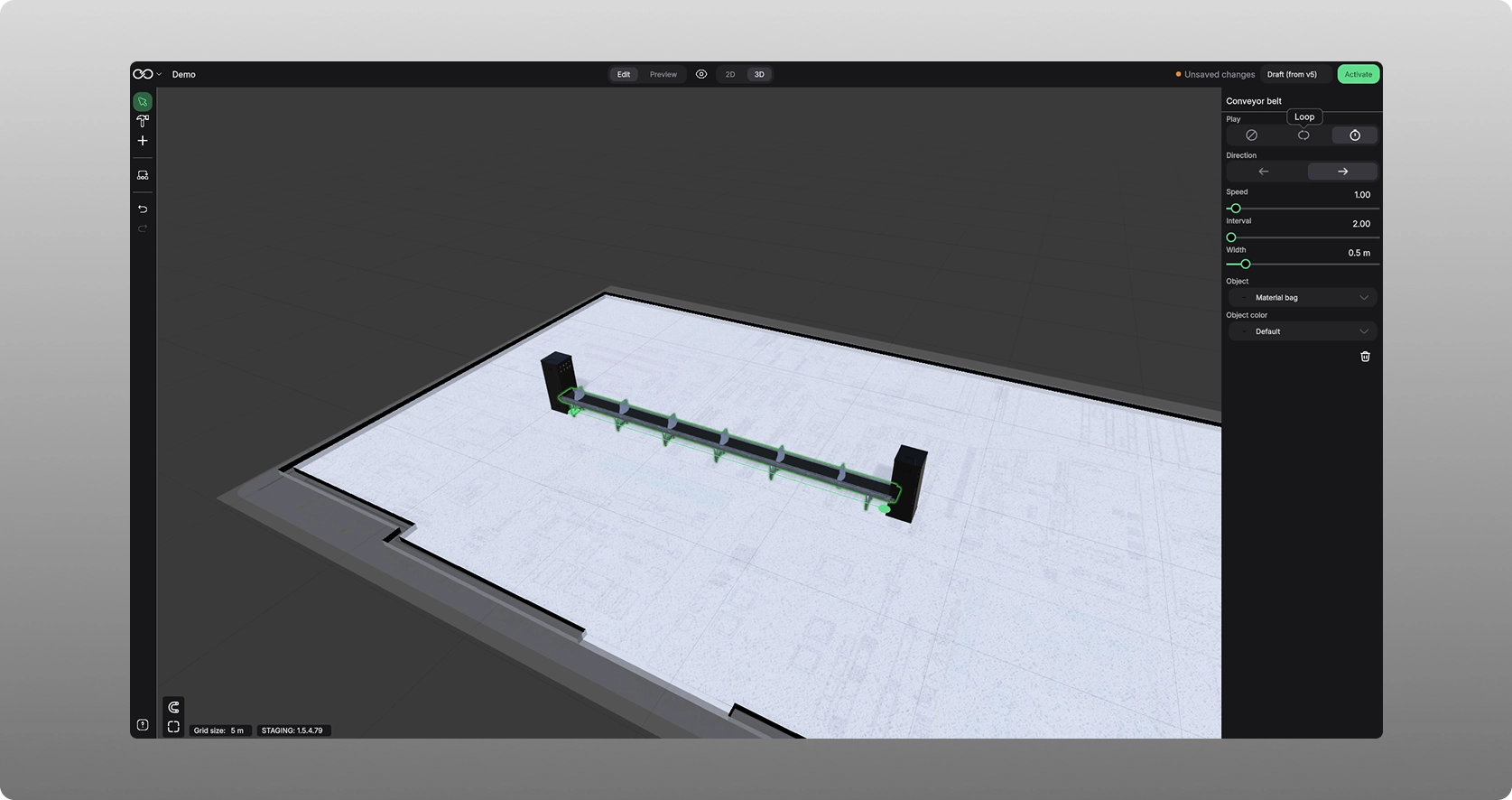
For a conveyor belt, you can adjust the following:
- Play. Choose nothing to travel on the conveyor belt, or loop the item chosen, or interval (every so often a new item comes).
- Direction. Choose direction of travel.
- Parameter settings. You can alter the speed, interval or width for the conveyor belt.
- Object. Choose which object that can travel on the conveyor belt.
- Object color. Choose the color for the object.
When you choose flow, you can in a similar way place a flow from that point. With this you can also choose a number of objects to represent the flow: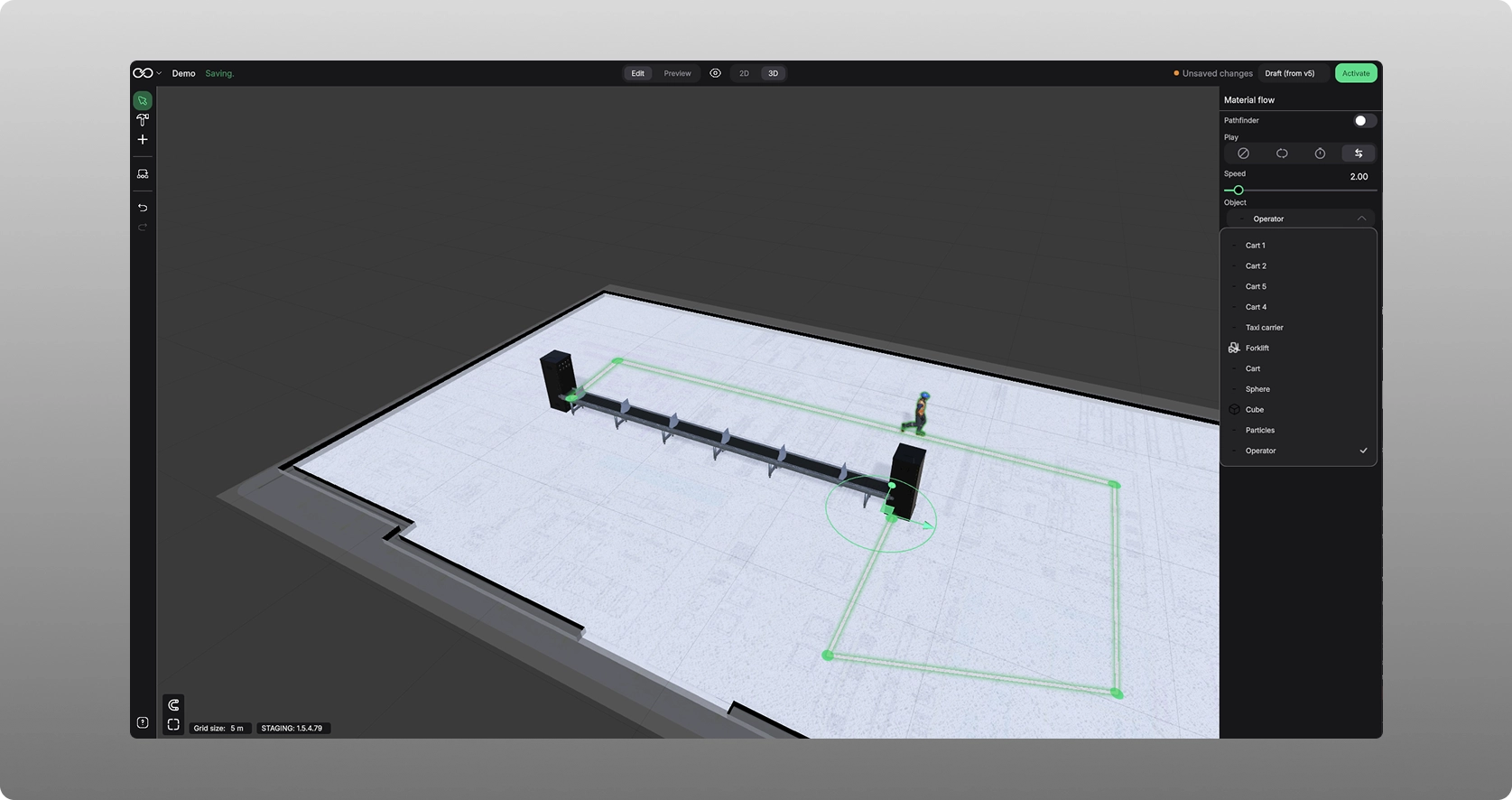
Things you can edit for the flow are:
- Pathfinder on/off. If this is selected to be on, it will automatically create a pathway that does not interfer with any other thing in the scene.
- Play. Select nothing to show, loop, interval or ping-pong for the flow.
- Speed. Adjust the speed of the flow.
- Object. Select the object of that the flow should illustrate.
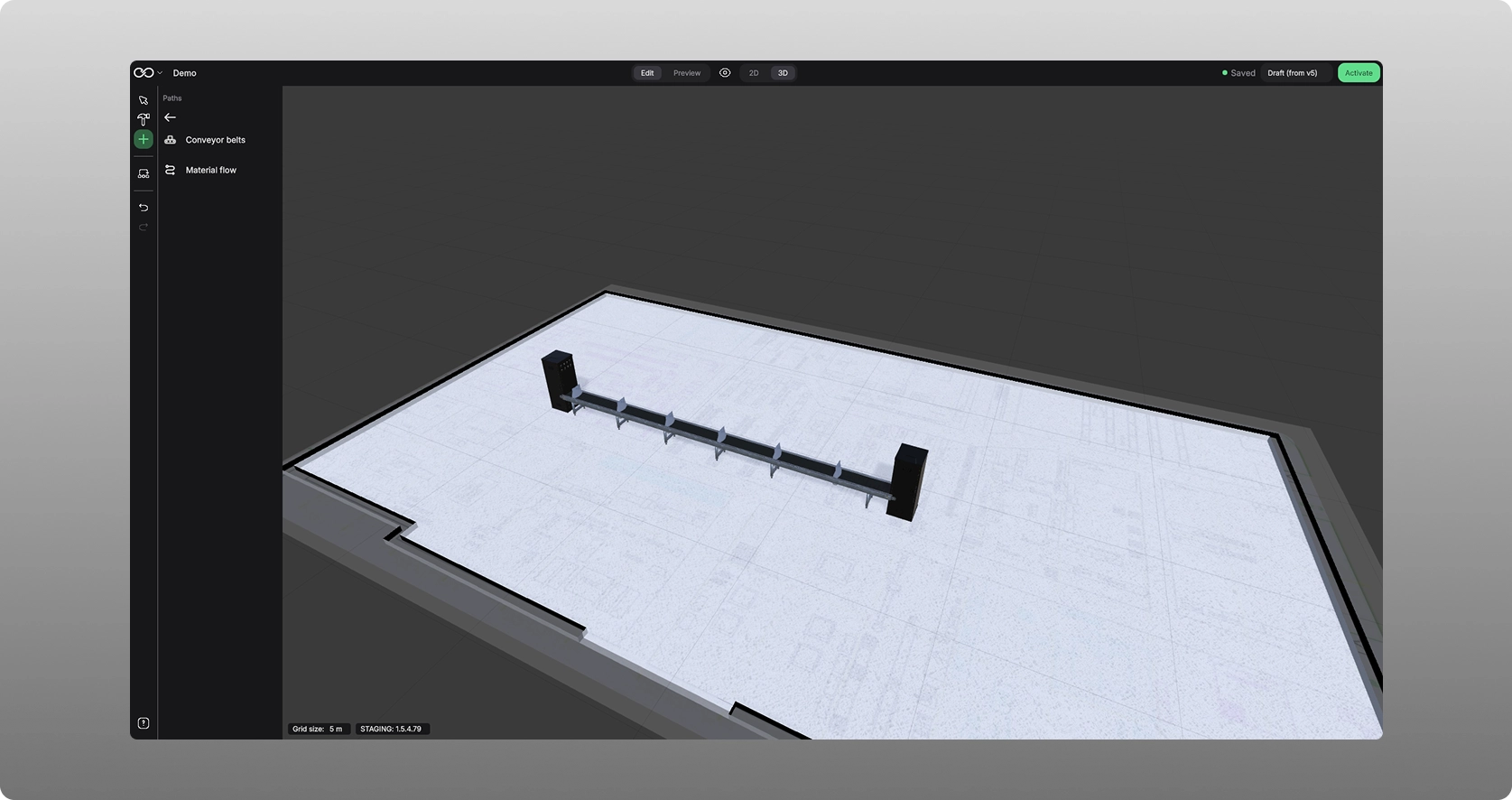
All of these features are also found through the “+” icon in the left hand menu, objects and then paths:
Was this article helpful?
That’s Great!
Thank you for your feedback
Sorry! We couldn't be helpful
Thank you for your feedback
Feedback sent
We appreciate your effort and will try to fix the article